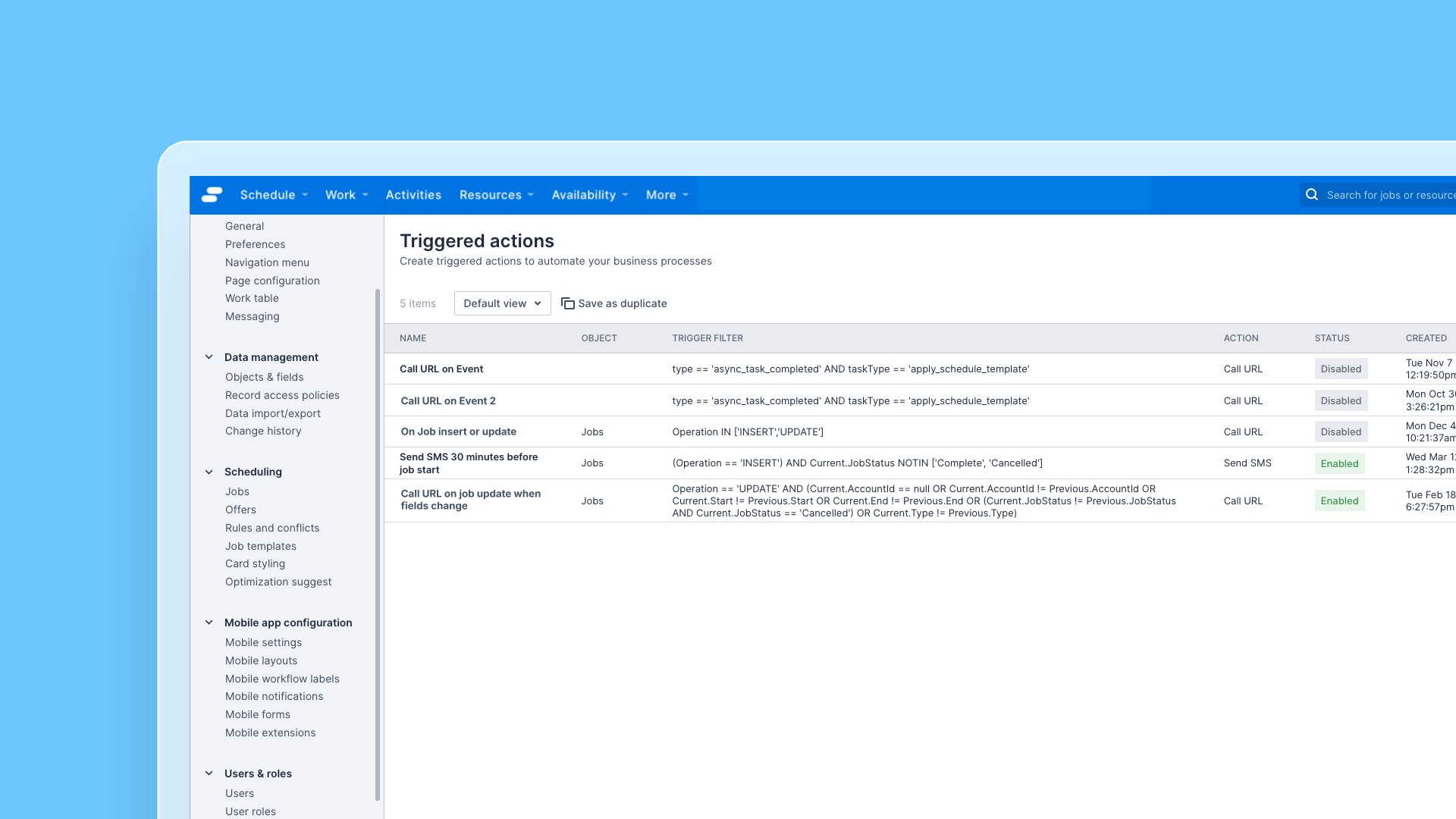
Administrators now have visibility of triggered actions that have been deployed by developers within their environments by navigating to: Settings > Developer tools > Triggered actions.
The list of triggered actions shows:
The name of the triggered action.
Object name if the triggered action is linked to object-modified events.
Any filters on the event.
What action is performed by the automation.
The status of the triggered action (Enabled or Disabled).
Audit information, such as Last modified date.
By clicking on a triggered action, administrators can view detailed information, including:
Specifics of the “trigger” configuration.
Specifics of the “action” configuration.
The execution logs. See the section on permissions below for more information about redacted/un-redacted views of logs.
To learn more about the capabilities of triggered actions and how developers can use them to automate business processes, please refer to the documentation.
Permissions
View triggered actions: To view the list of triggered actions and the details of a specific triggered action, a user must have the Administrator role or a role that includes the “View webhooks and triggered actions” permission.
View un-redacted execution logs: The execution logs for triggered actions can include sensitive data, for example, if the trigger is of the type ‘object-modified’. If you only have the “View webhooks and triggered actions” permission, you will see “<redacted>” instead of the actual values. To view un-redacted logs, you must have the “Modify webhooks and triggered actions” permission.
Note: Ability to make modifications to triggered actions via the web app settings is coming soon. Until then, this can be done via the Skedulo API or Skedulo CLI.