Release notes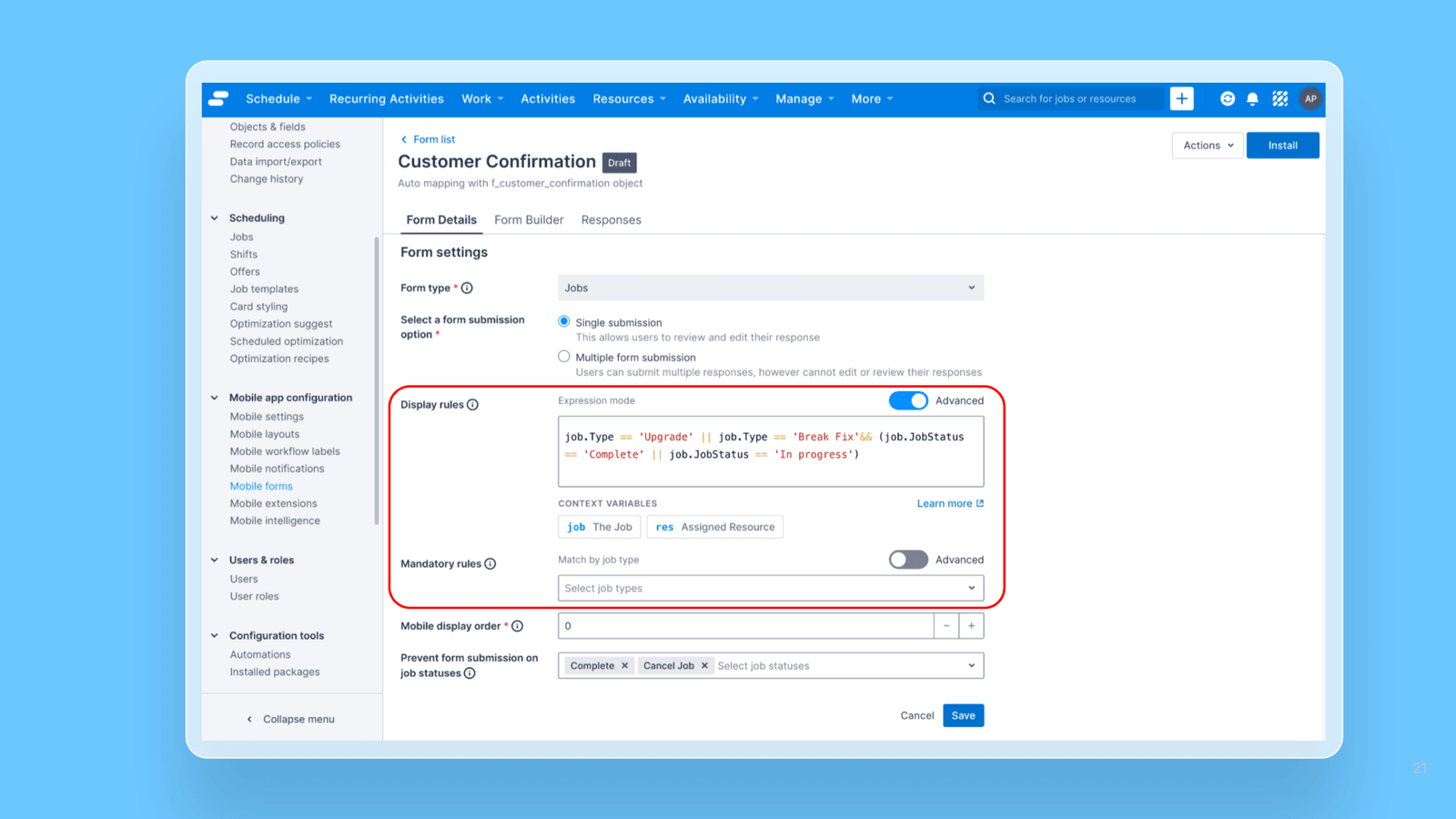
Form Builder - Advanced conditions for form display and mandatory rules
9 September 2026
Skedulo Plus - Extension FrameworkAdministrators

What's new
This update is for administrators who configure mobile forms in the Skedulo web app. It is most useful where form visibility or completion requirements depend on more than the Job Type, such as a combination of criteria or a value held in a custom field.
Nothing changes for mobile users, and nothing changes for forms you have already set up. Existing rules keep working until you turn Advanced mode on.
How it works
No configuration is required. The Advanced toggle is available on the Form Details tab of any form.
- Open Mobile forms page in the web app and select the form you want to change.
- On the Form Details tab, click on Display rules or Mandatory rules fields to start editing. As part of this enhancement, we also updated the field labels. The visibility and mandatory conditions are now labelled Display rules and Mandatory rules. Each has a tooltip explaining what it controls and what a blank rule does.
- Turn on Advanced for that rule. If you have existing rules and turn on the Advanced mode, the editor opens pre-filled with the expression that matches your current dropdown selection, so no configuration is lost. Several selected job types come across joined with OR.
- Edit the expression to the condition you need. An expression must resolve to true or false. If it does not, Form Builder blocks the save and reports the problem on the rule. An empty expression means no condition and the form appears everywhere, or is never mandatory. This is the same way a blank dropdown behaves.You can write the expression using job fields or assigned resource fields. Click Learn more under the editor for guidance on writing expressions. For example, to display the form for only 2 resources John and Sally, you an set the condition here as: res.Email == 'john.doe@acme.com'|| res.Email == 'sally.parker@acme.com'
- Save the form.
Important notes
- Switching back to Basic mode: if the rule holds an expression, Form Builder warns you that it will be discarded and offers to keep Advanced mode instead. An empty rule switches straight back.
- Custom rules are flagged in the form list: forms using an expression show Custom in the form list instead of the expression text. Hover over Custom to read the full expression.
- Available on job forms and global forms: the same Advanced toggle appears on both.