


Important
This AU Healthcare Package version requires the following packages to be installed first.
- Lumary: 20.3.9 or greater
- Enrite Services: 1.307
- Skedulo: 102.56 or greater
Note: Features related to job allocation will not apply to Job Allocation Screens used with any Award Integration.
What’s New
Time of Day Suggestion
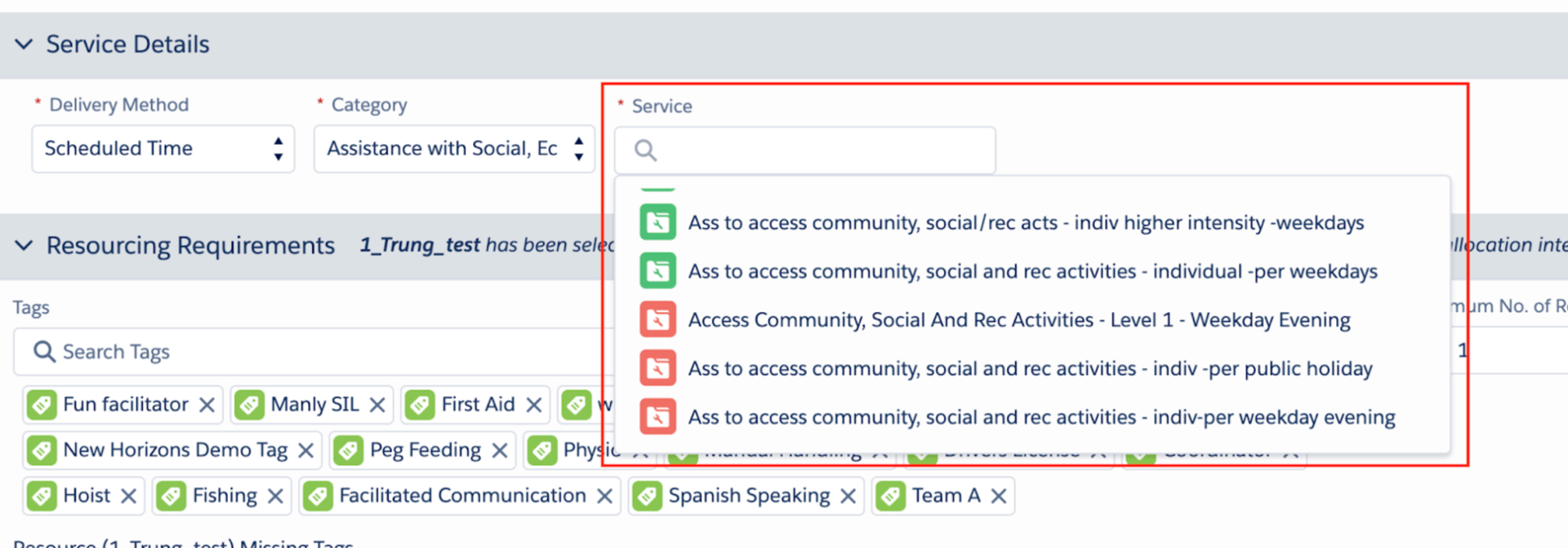
- The system now suggests Services or Service Agreement Items to schedulers based on the job’s time and day.
- Matching items are grouped at the top with a green icon.
- Non-matching items are grouped at the bottom with a red icon.
- If a job’s duration spans multiple time-of-day segments (e.g., Weekday Daytime and Evening), a message will suggest selecting the most compliant service or breaking down the line item.
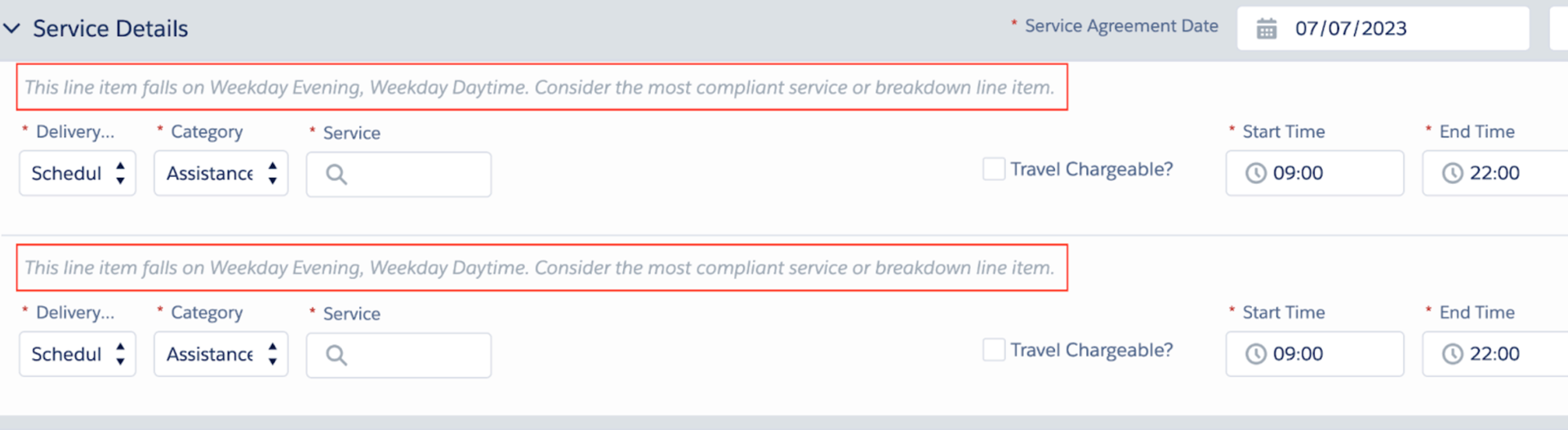
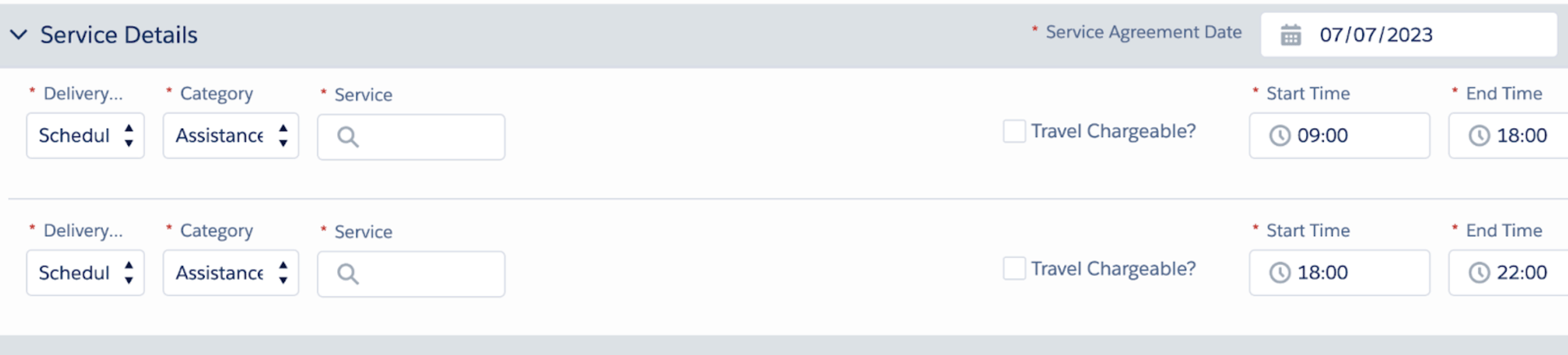
- This is a soft suggestion; schedulers can ignore it and select any option. It does not interfere with existing time-of-day validation checks.
- To enable: Set Custom Setting / Skedulo Config / Enable_Suggesting_Warning_TimeOfDay = True.
Resource Auto-Deallocation for Unavailability
- Automatically deallocates a resource and sets a job’s status to “Pending Allocation” if a recurring or replicated job overlaps with the resource’s approved unavailability.
- Scope:
- Active for: New jobs created via recurrence or replication on the Scheduling Console, Resource Roster, Roster Management, and Resource Calendar.
- Not active for: The original source job of a recurrence or for jobs updated via the edit/allocate screen, as these allocations are considered intentional.
- Note: This feature is enabled by default upon installation.
Resource Allocation Message
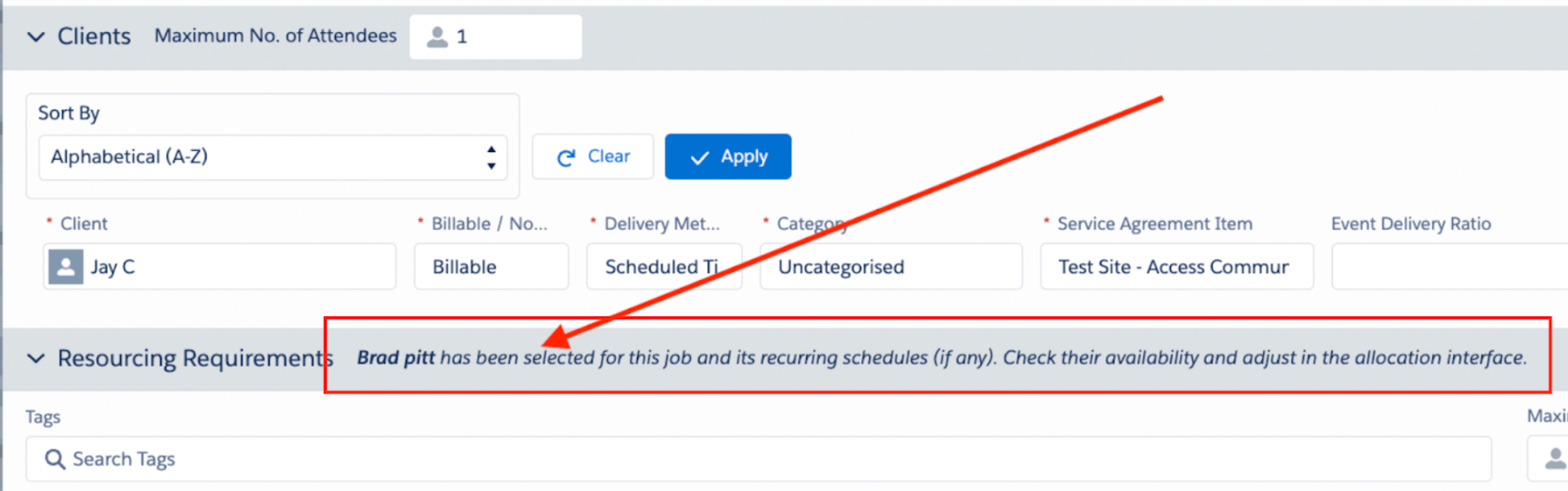
- A warning message now appears on the job creation window (Scheduling Console, Resource Roster, Roster Management, Resource Calendar) to advise that a pre-selected resource will bypass standard availability checks.
Indicators and Availability on Allocated Resources
- In the job edit/allocation window, already allocated resources will now display:
- Account inclusion indicator (yellow star)
- Unavailable reasons
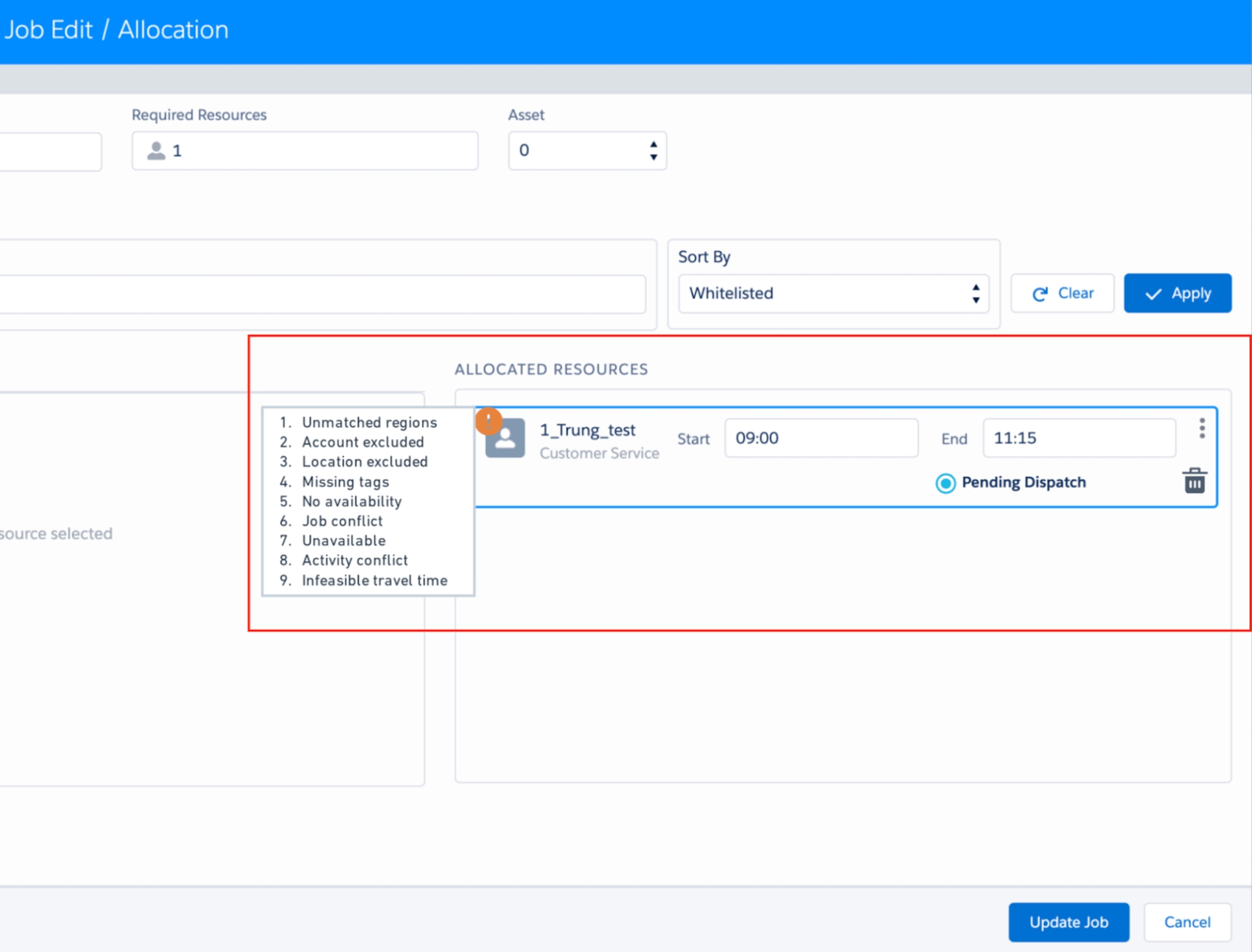
- Note: This may not apply to orgs using a custom job allocation with an Award Interpreter package. This will be addressed in a future Award Interpreter update.
Job Allocation Respects Location Inclusions/Exclusions
- Location Exclusion:
- Resources excluded from a job’s location are no longer considered available.
- “Location excluded” is now listed as an unavailable reason.
- Location Inclusion:
- A new indicator (yellow pin) highlights resources included for the job’s location.
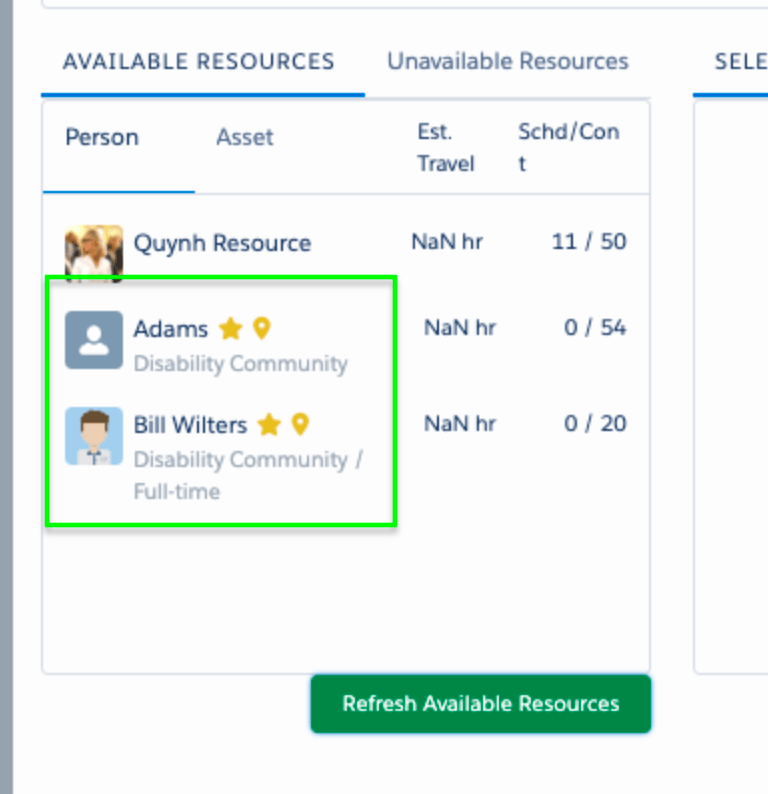
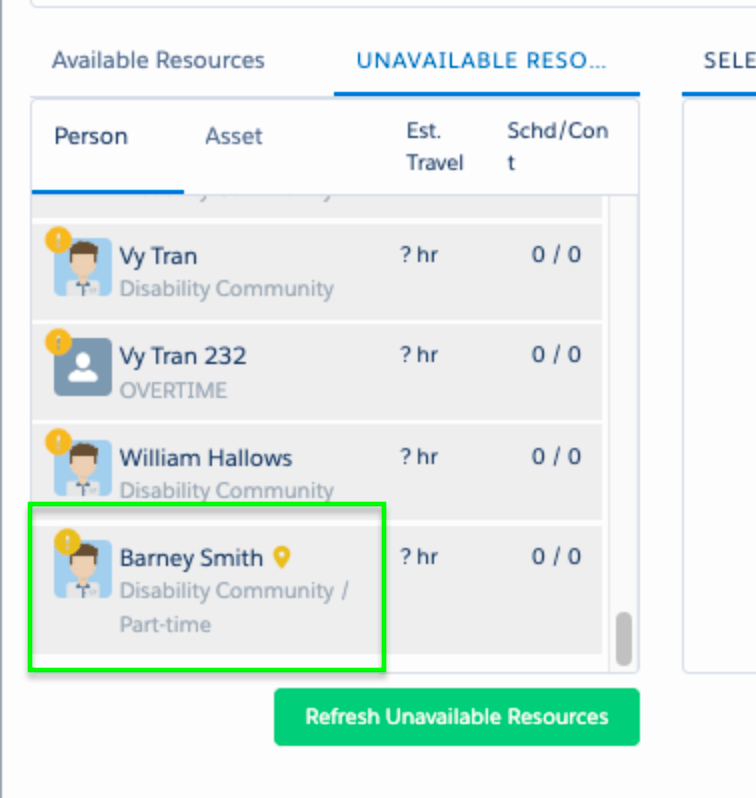
- Note: This may not apply to orgs using a custom job allocation with an Award Interpreter package. This will be addressed in a future Award Interpreter update.
Enhanced Balance Check Notifications
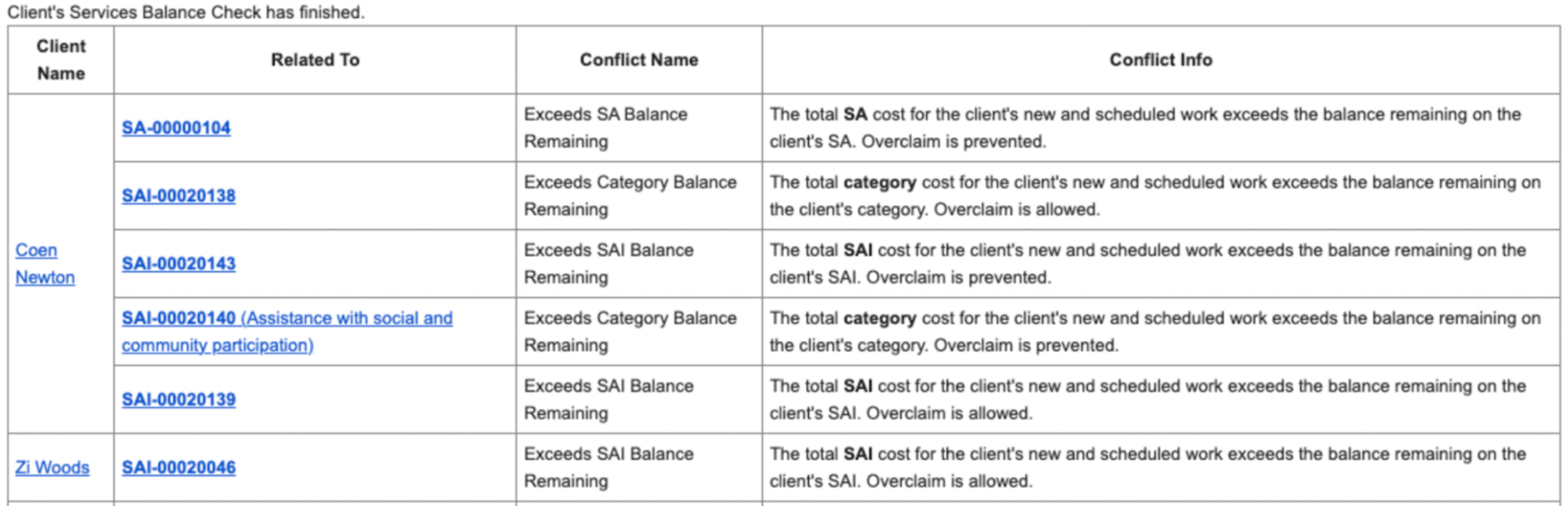
- Category-level balance checks are now performed when validating or replicating a base template from the Scheduling Console.
- These alerts are now included in the email notification, alongside existing service agreement and line item alerts.
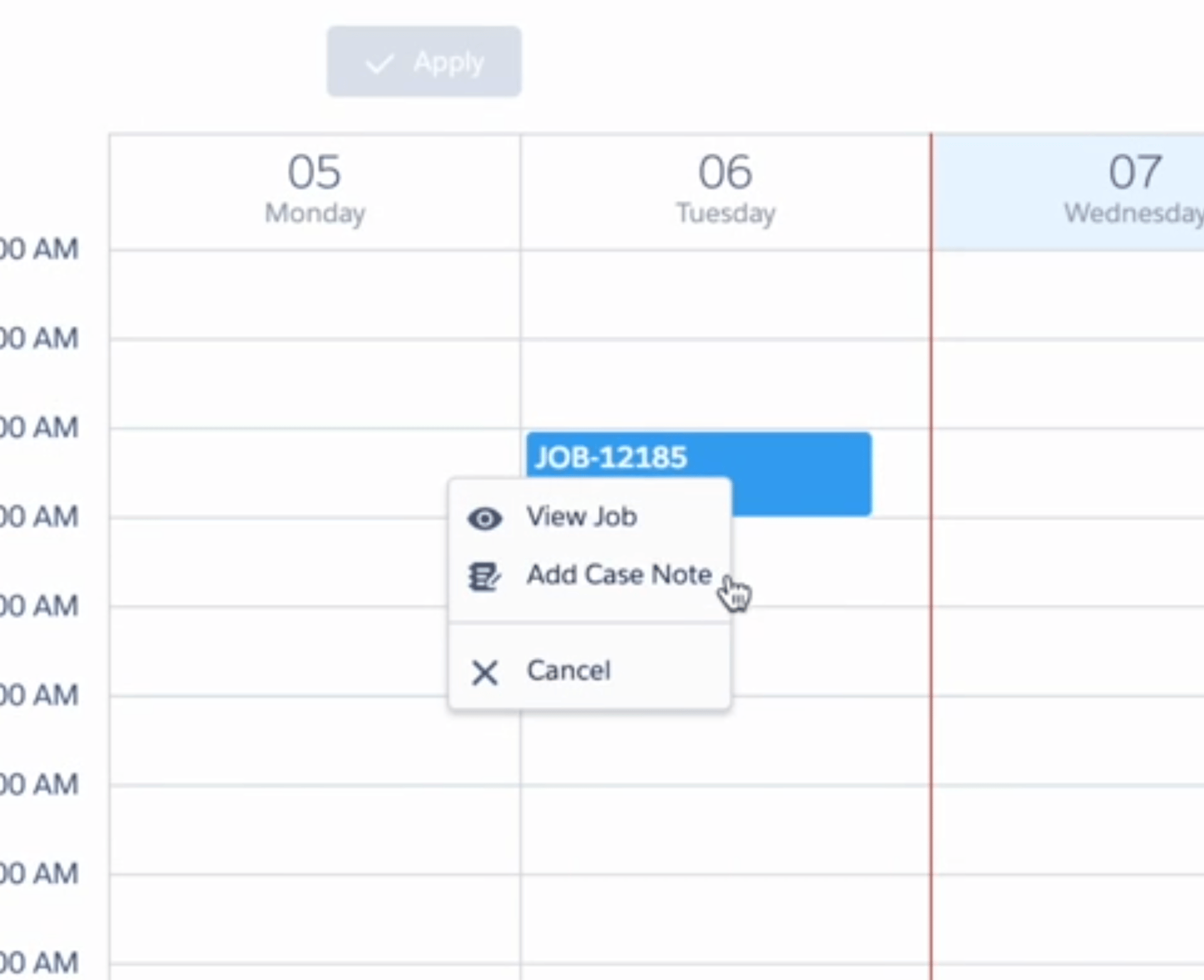
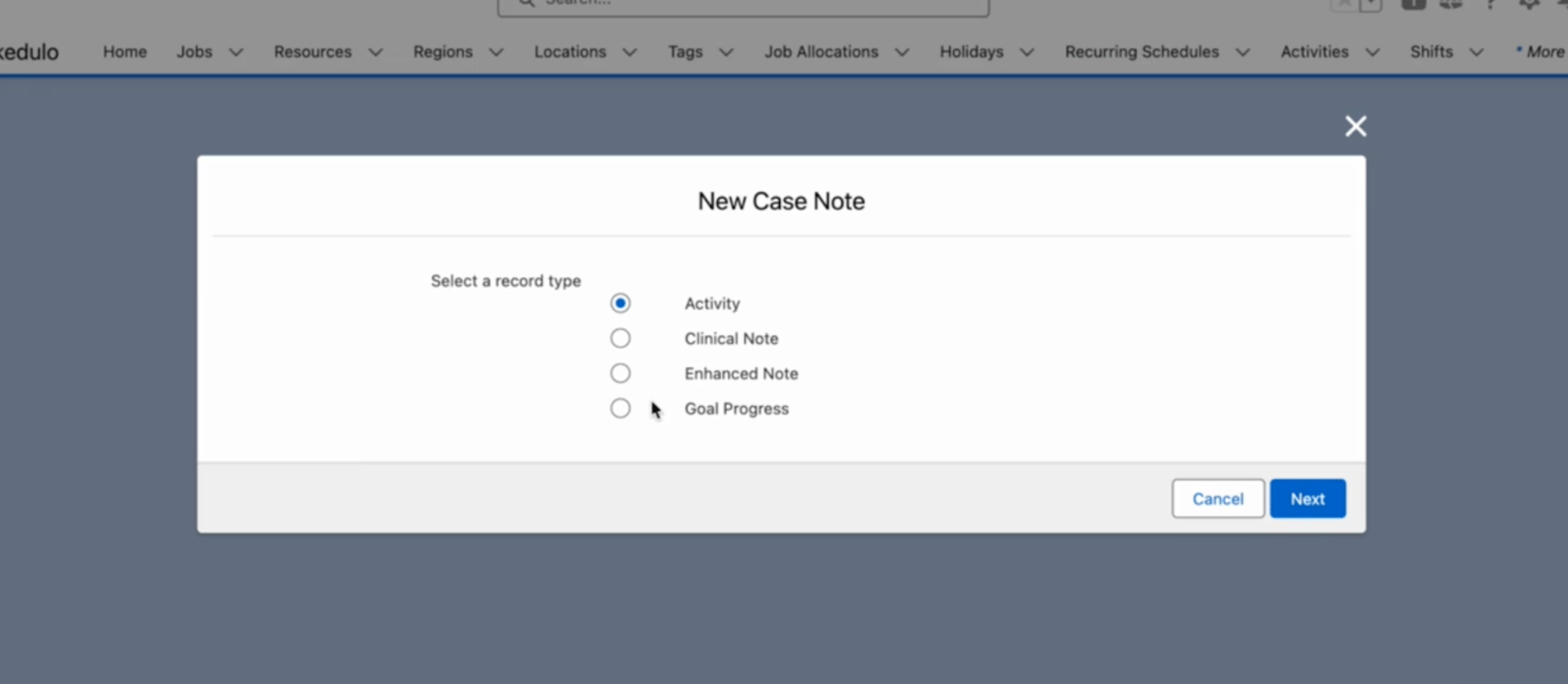
Add Case Notes from Resource Calendar
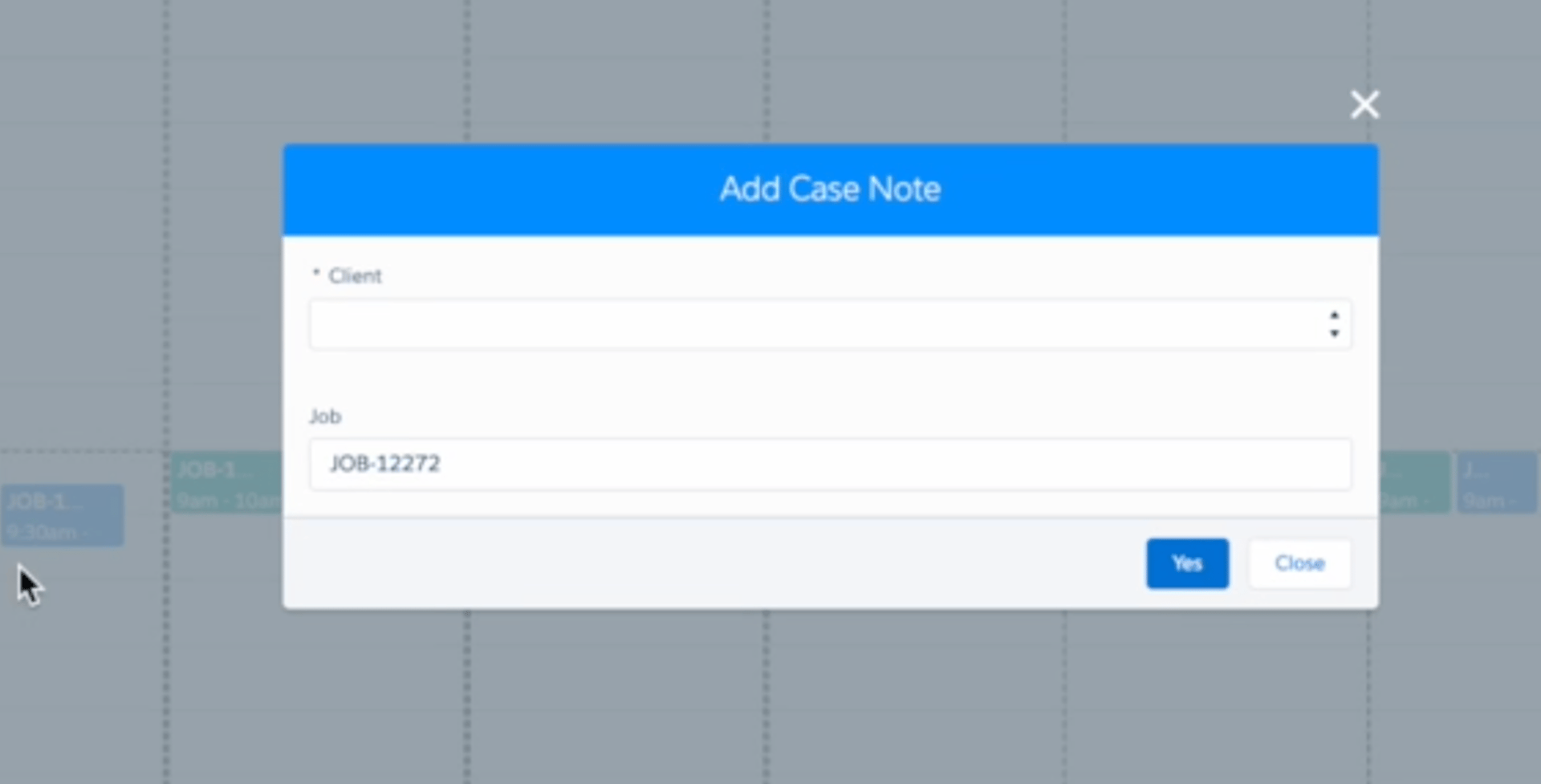
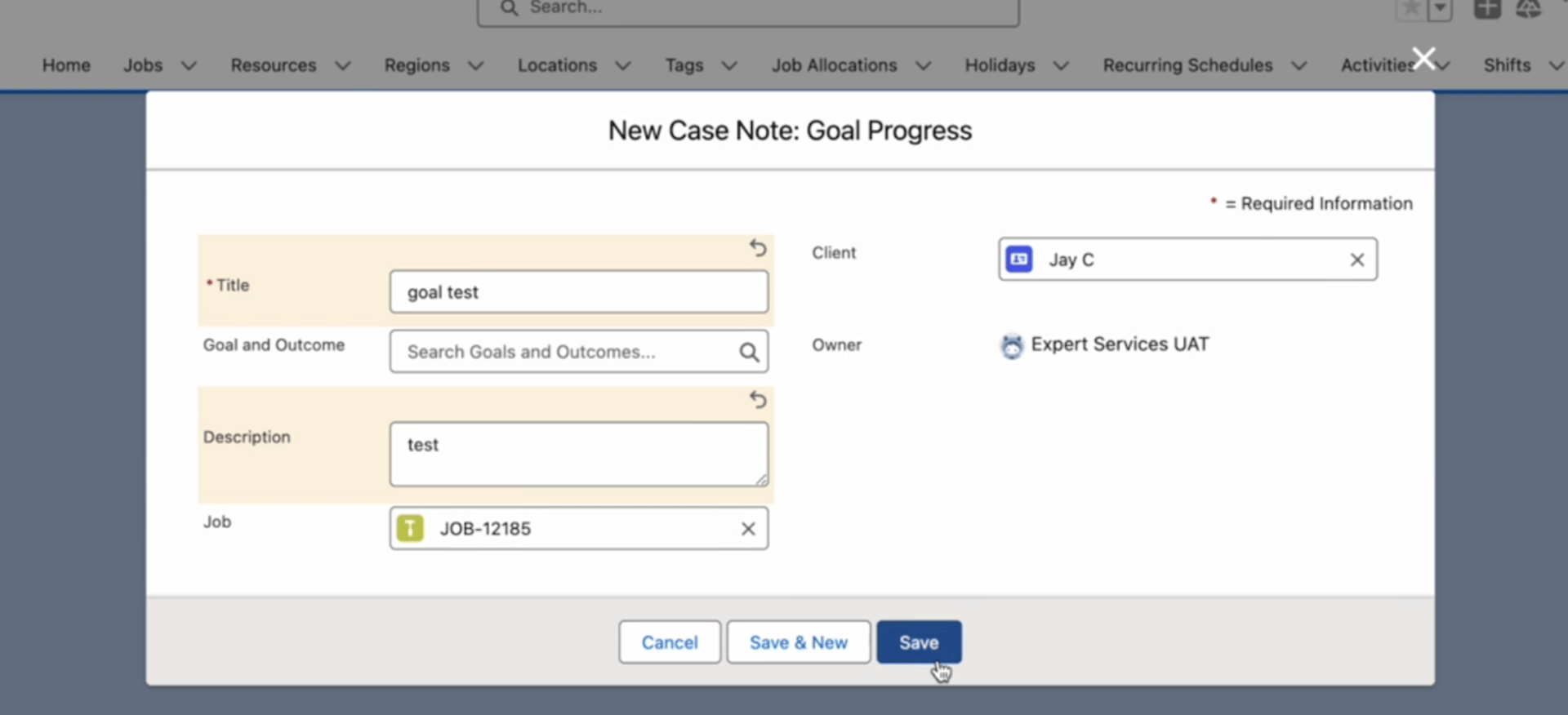
- Users can now add case notes directly from the Resource Calendar by right-clicking a job.
- For Group Event jobs, the user must first select a client.
- The Job ID and Client Name auto-populate on the form. The case note is then associated with the Client and the Job.
Job_Hover_Fields Setting Update
- The Job_Hover_Fields custom setting now supports unallocated jobs. When configured, allocation-related fields will display on the hover for unallocated jobs.
Region & Client View Scheduling on Scheduling Console
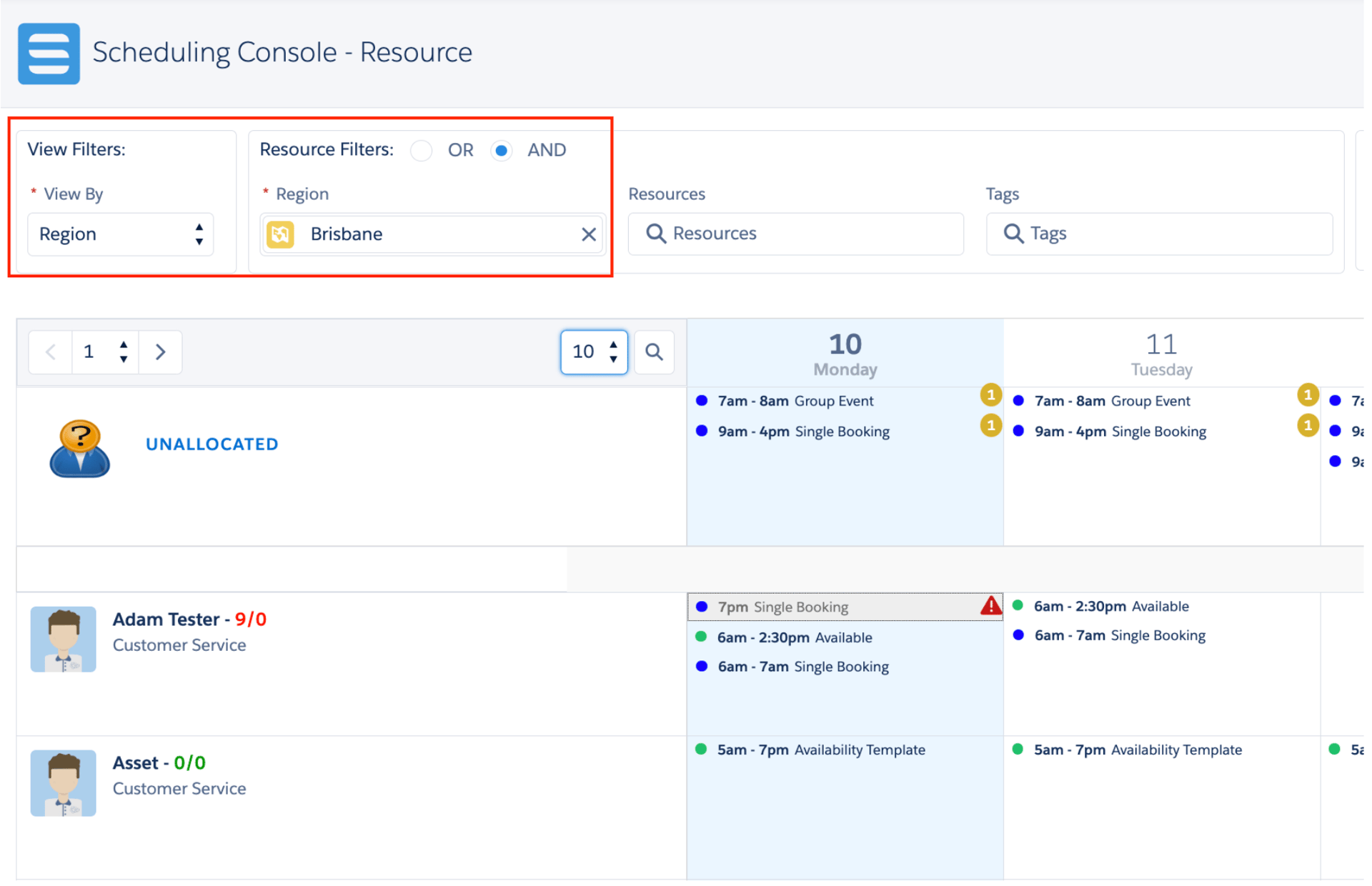
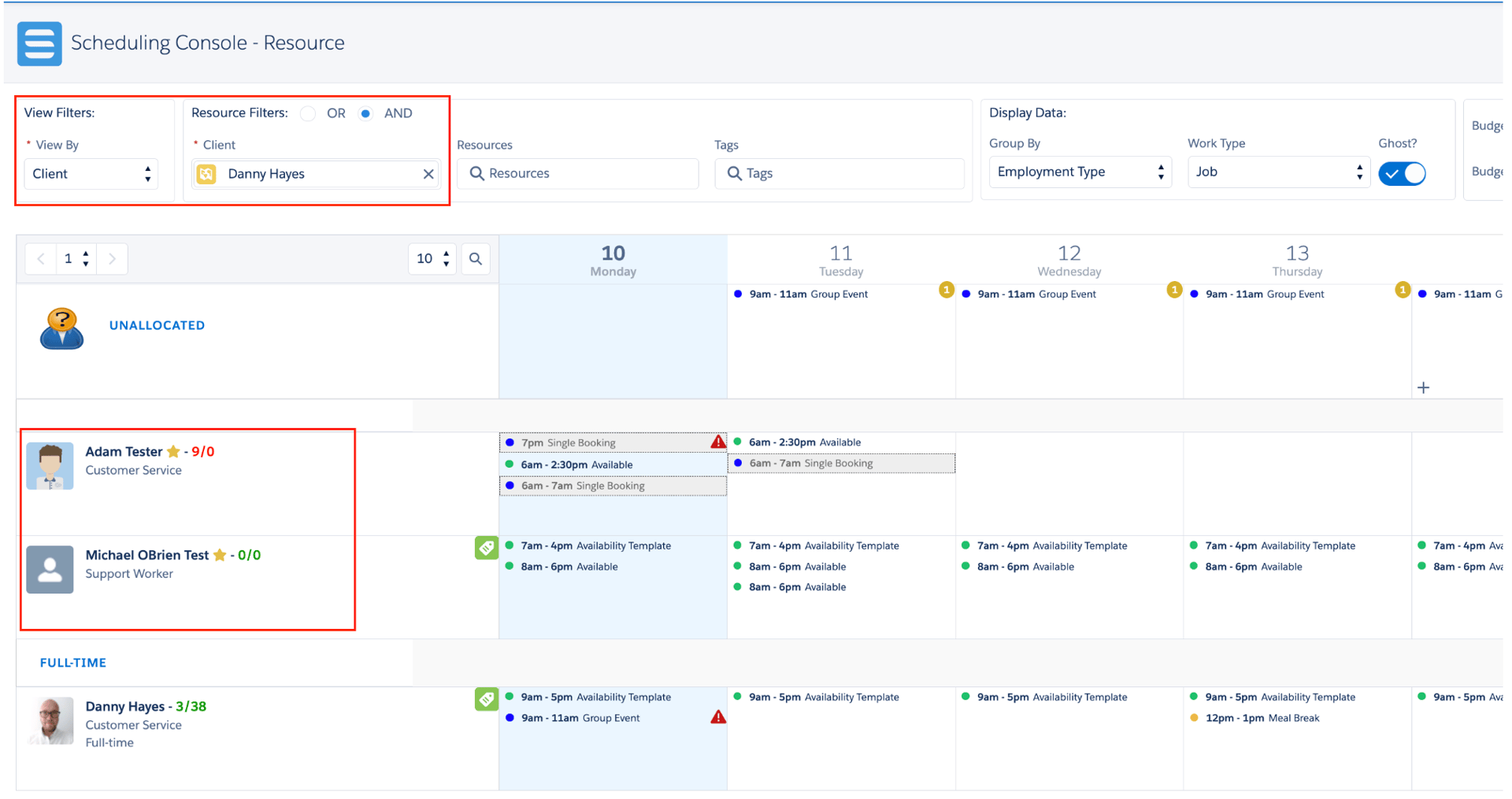
Schedulers can now view work by Region or Client, combining these views with filters like resource name/tag, date range, work type, and more.
- Region View:
- Displays resources with matching primary/secondary regions.
- Displays jobs within the selected region, even if the allocated resource doesn’t match regions.
- Displays unallocated jobs within the region.
- Client View:
- Displays resources with an Account Inclusion for the client (marked with a yellow star).
- Displays all jobs for the selected client, regardless of the allocated resource.
- Displays unallocated jobs for the client.
- Common to both Region & Client Views:
- “Ghosts” (jobs/shifts outside the selected region/client) are visible but not editable.
- Available functions: Create/manage jobs, shifts, activities, availabilities; manage timesheets; view scheduled hours (and total cost for Client View).
- Unavailable functions: Base template, Replicate Schedule, Publish Schedule, Print Schedule.
- Standard custom settings (Job_Hover_Fields, Resource_Hover_Fields, etc.) apply.
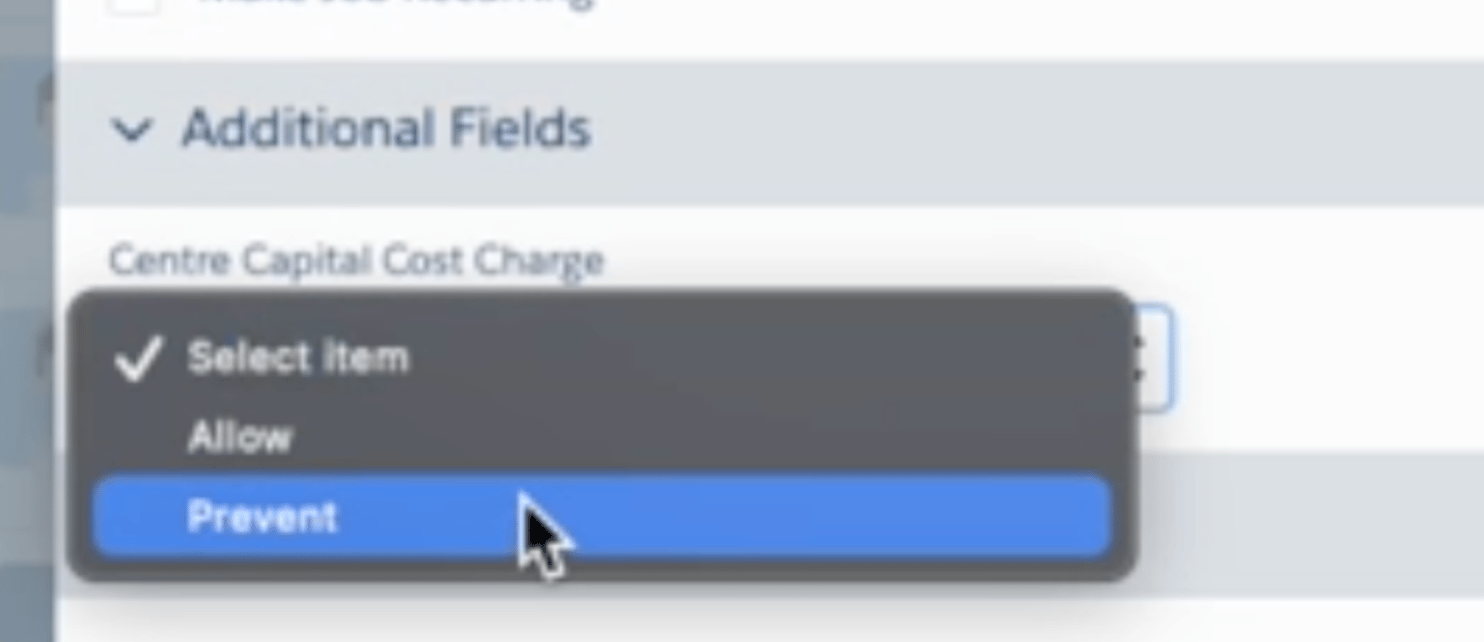
Centre Capital Cost Charge
- A new picklist field, “Centre Capital Cost Charge,” is available for jobs via Custom Setting / Skedulo Additional Fields.
- Default Settings: The field is disabled (Display=false, Hidden=true) and only available for Group Event Bookings.
- Notes:
- Lumary will release an update to capture this field in Service Delivered Records.
- If you installed HCP v1.223, run the following script to apply the new defaults: skedhealthcare__sked_Additional_Field__c c = [SELECT Id, skedhealthcare__Categories__c, skedhealthcare__Display__c, skedhealthcare__Hidden__c FROM skedhealthcare__sked_Additional_Field__c WHERE Name = 'Centre Capital Cost Charge'];c.skedhealthcare__Categories__c = 'GroupEventBooking';c.skedhealthcare__Display__c = false;c.skedhealthcare__Hidden__c = true;update c;
Issues Fixed
- Fixed erratic and blinking job hover behavior on the Roster Management and Resource Roster Consoles.
- Fixed a search issue preventing tags with over 1000 records from being searchable. The fix is now applied to the Scheduling Console, Group Event, and Job Allocation.
- Fixed an issue on the Roster Management Console where the ‘Apply’ button was incorrectly disabled with certain search criteria.
- Fixed balance check logic (from v1.223) to correctly support service agreement end dates.
- Resolved “too many rows” and “heap size” errors on the Job Allocation modal for orgs with large data volumes.
- The logic was refactored to improve performance.
- Unavailable resource reasons now load on hover, not initially.
- Scheduled hours and estimated travel times for unavailable resources are temporarily disabled to ensure stability.
- To activate the new logic for orgs experiencing issues, set Custom Settings / Sked Configs / Load_All_Info_Unavailable_Resources = false.
Important
Additional Install Component: If you are upgrading from version 1.139 or less, this version requires the installation of an additional component to enable certain core functionality.
Refer to the AUHC Additional Install Component page for further details and installation steps.
Manual Installation Links
Sandbox:https://test.salesforce.com/packaging/installPackage.apexp?p0=04t8W000003reHl
Production:https://login.salesforce.com/packaging/installPackage.apexp?p0=04t8W000003reHl
Please note: You must be a Salesforce Administrator to install this package.