




Compatibility
This package version requires the following mandatory packages in place before installation:
- Skedulo Core Package: 102.54+
- Lumary: 20.3.9+
- Enrite Care Services: 1.307+
What’s New
Region Base Template and Roster Replication
Region base template
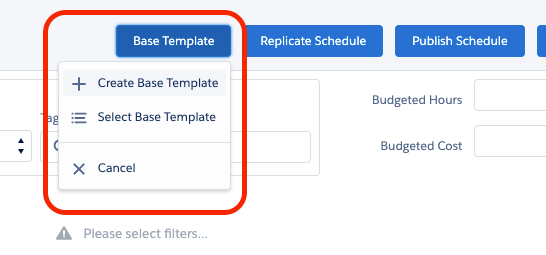
When viewing work in the Scheduling Console and filtering it by Region, schedulers now have the ability to create base templates for regions enabling replication of future rosters.
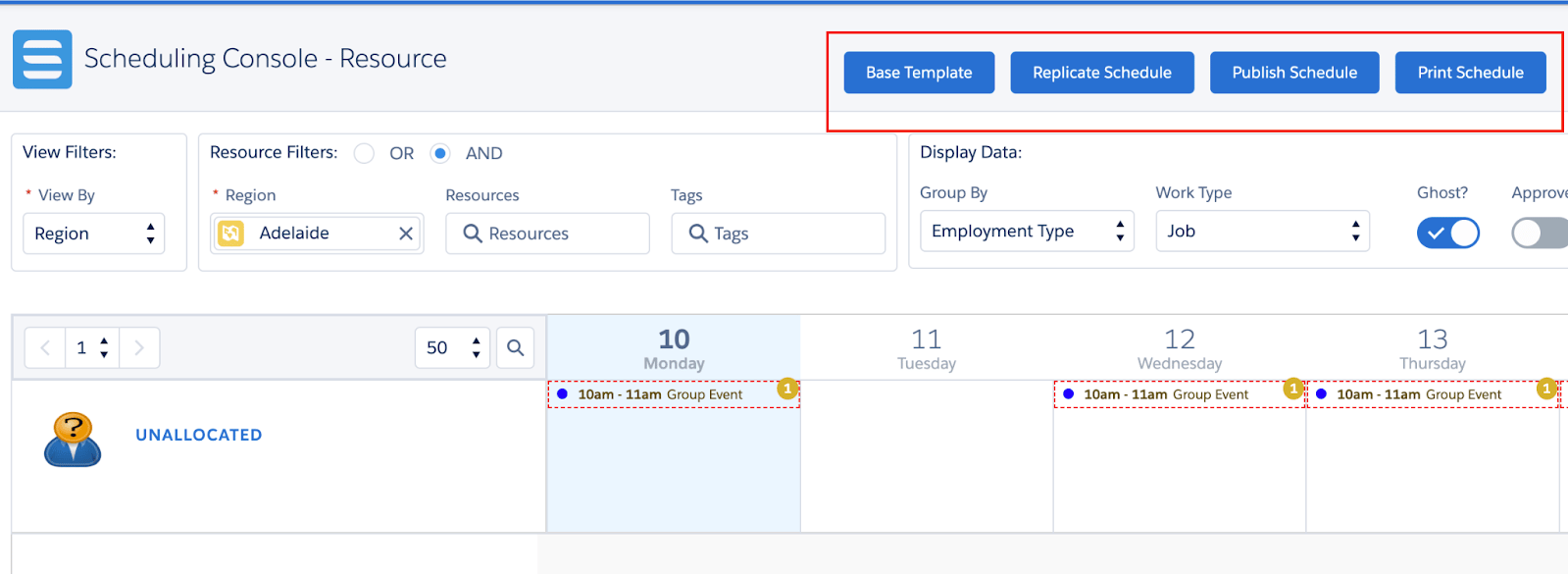
Jobs that are in Pending Dispatched status, and Shifts that are not published (Is Draft = true), associated with the Region will be linked to the newly created template. Activities by design are not tied to regions, hence will not be linked to the region base templates.
Validations:
- A region base template cannot be created at overlapping times with existing ones that are for the same region or an associated location that has the same region. This is to retain the 1:1 relationship of any specific jobs or shifts to a base template, reducing the risk of replicating the same jobs or shifts.

- A base template cannot be created when it has the same name as the existing one.

How to create a Region Base Template ? – Watch Video
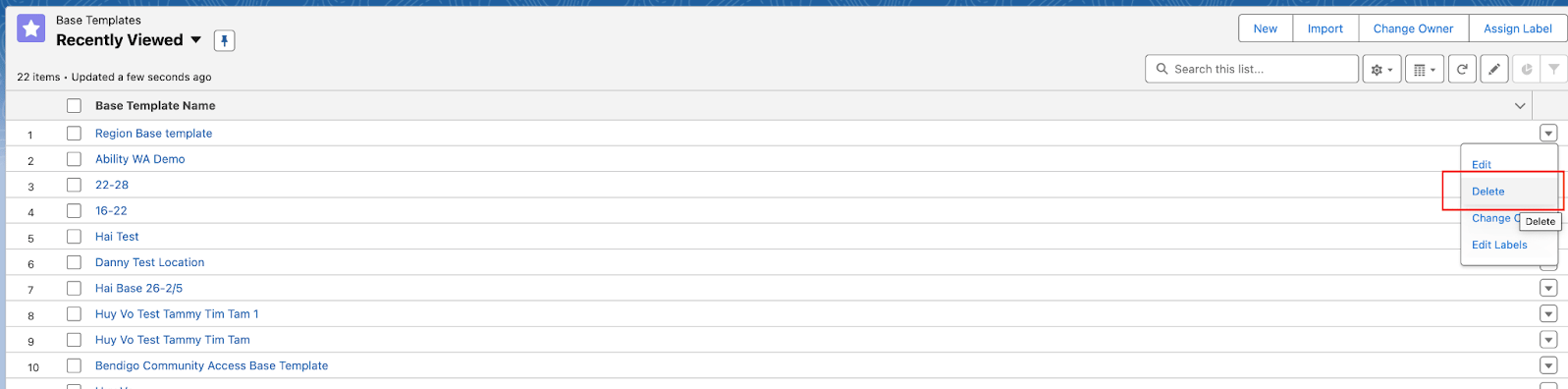
Base templates can be deleted in case they were mistakenly created following below steps:
- Go to Base Templates
- Find the Delete option on the record
- Delete the record. This will automatically detach all the linked events from the base template.
- The events (Jobs and Shifts) will still exist but will no longer be part of the Base Template. The jobs will need to be deleted individually if they are no longer required.
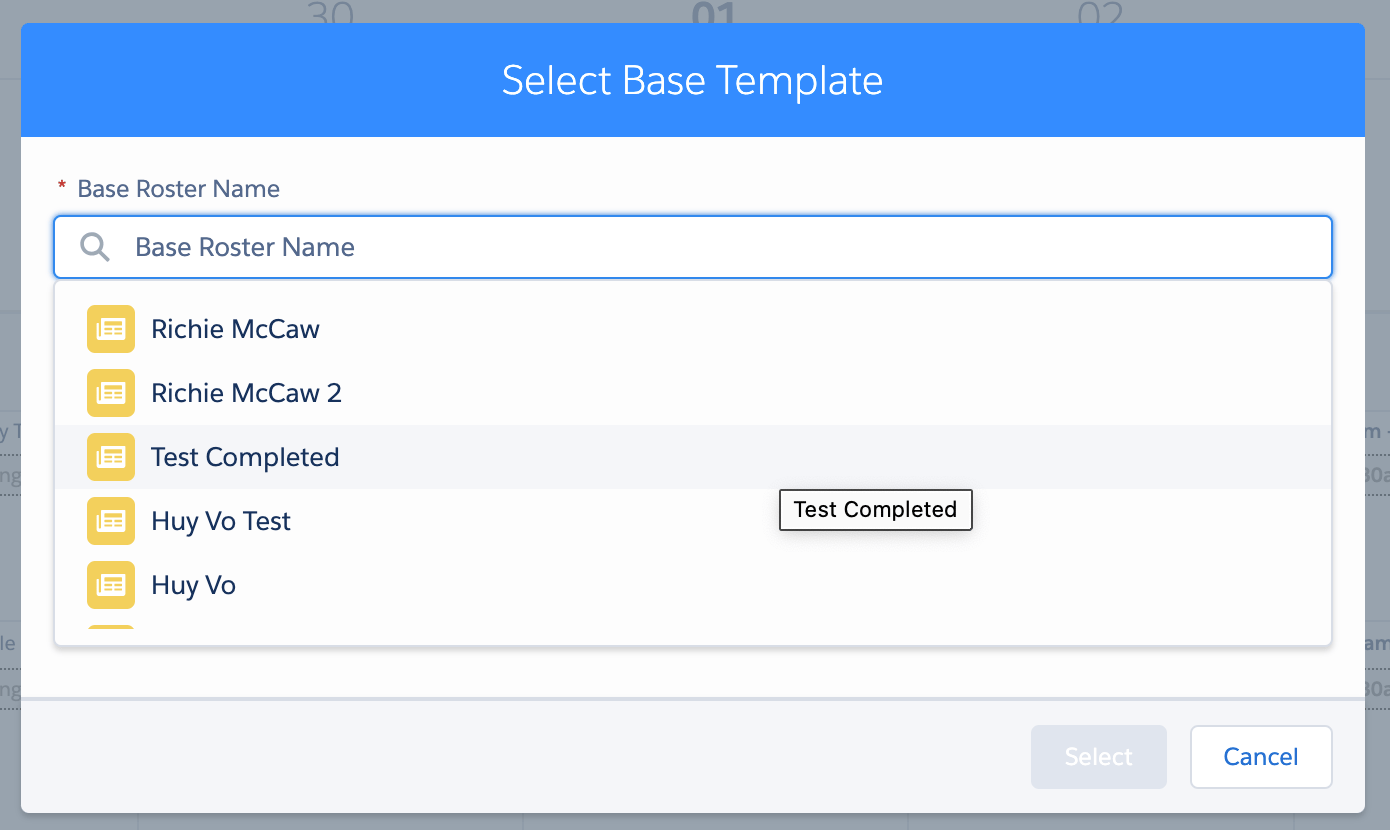
To access an existing regional base template, find and select the template from the picklist.
While inside a base template, creating any new events such as jobs or shifts with the matching region will automatically attach the events to the base template.
A region base template can be validated or replicated with the experience similar to the location base template. Jobs, Shifts that are linked to the base template within the template period are the records that will be validated/replicated. Activities again by design are not tied to regions, hence will not be linked to the region base templates and not an option for these processes.
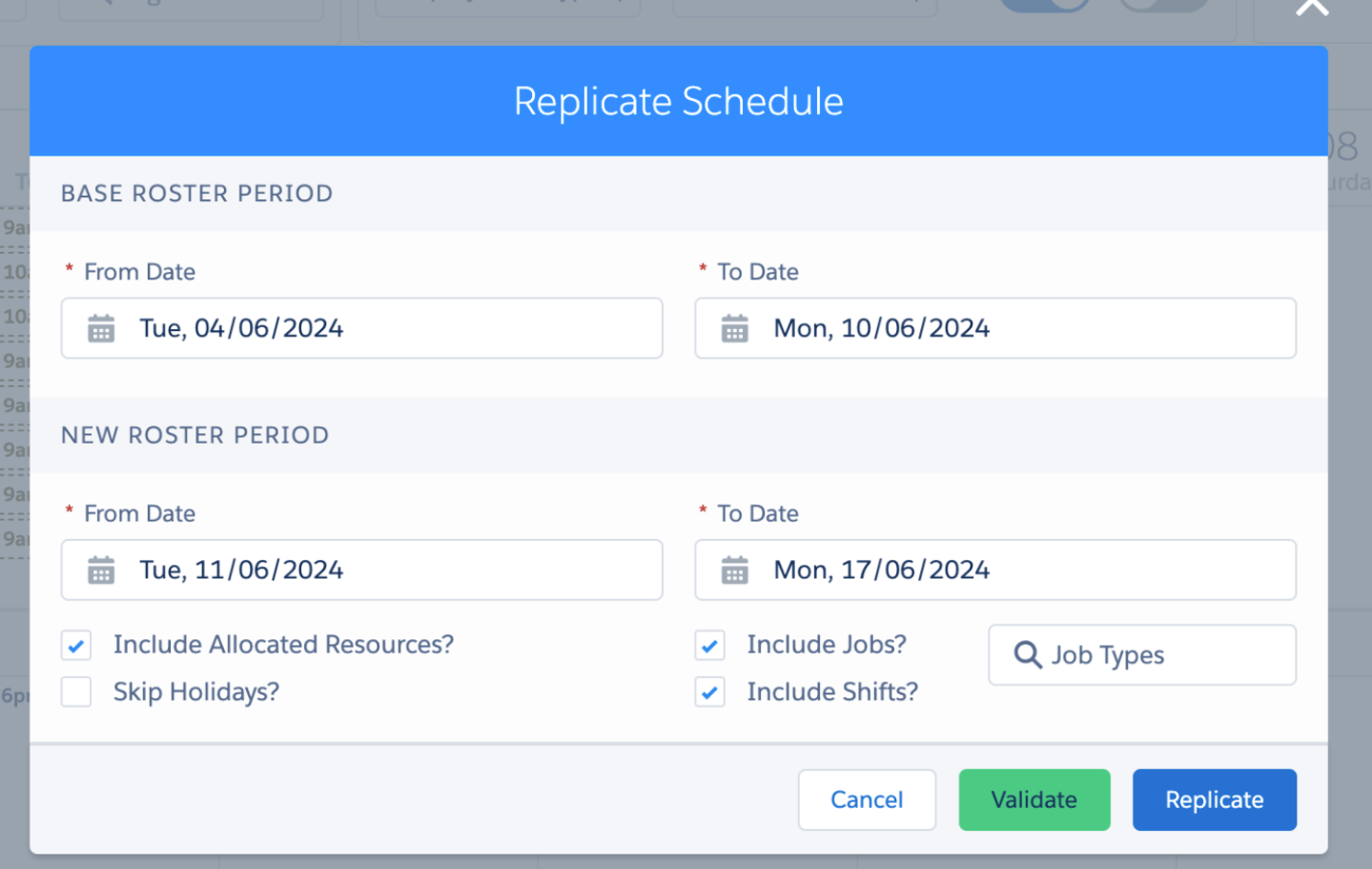
How to replicate a Region Base Template ? – Watch Video
Replicating and validating a region roster
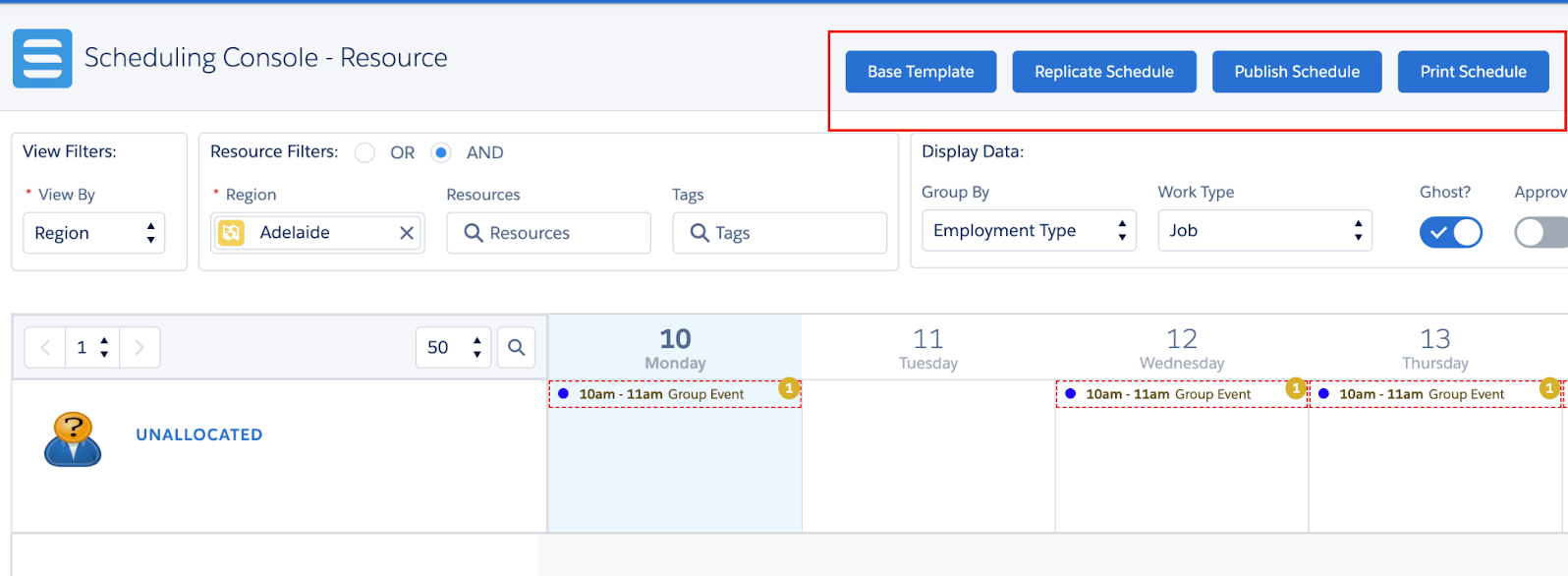
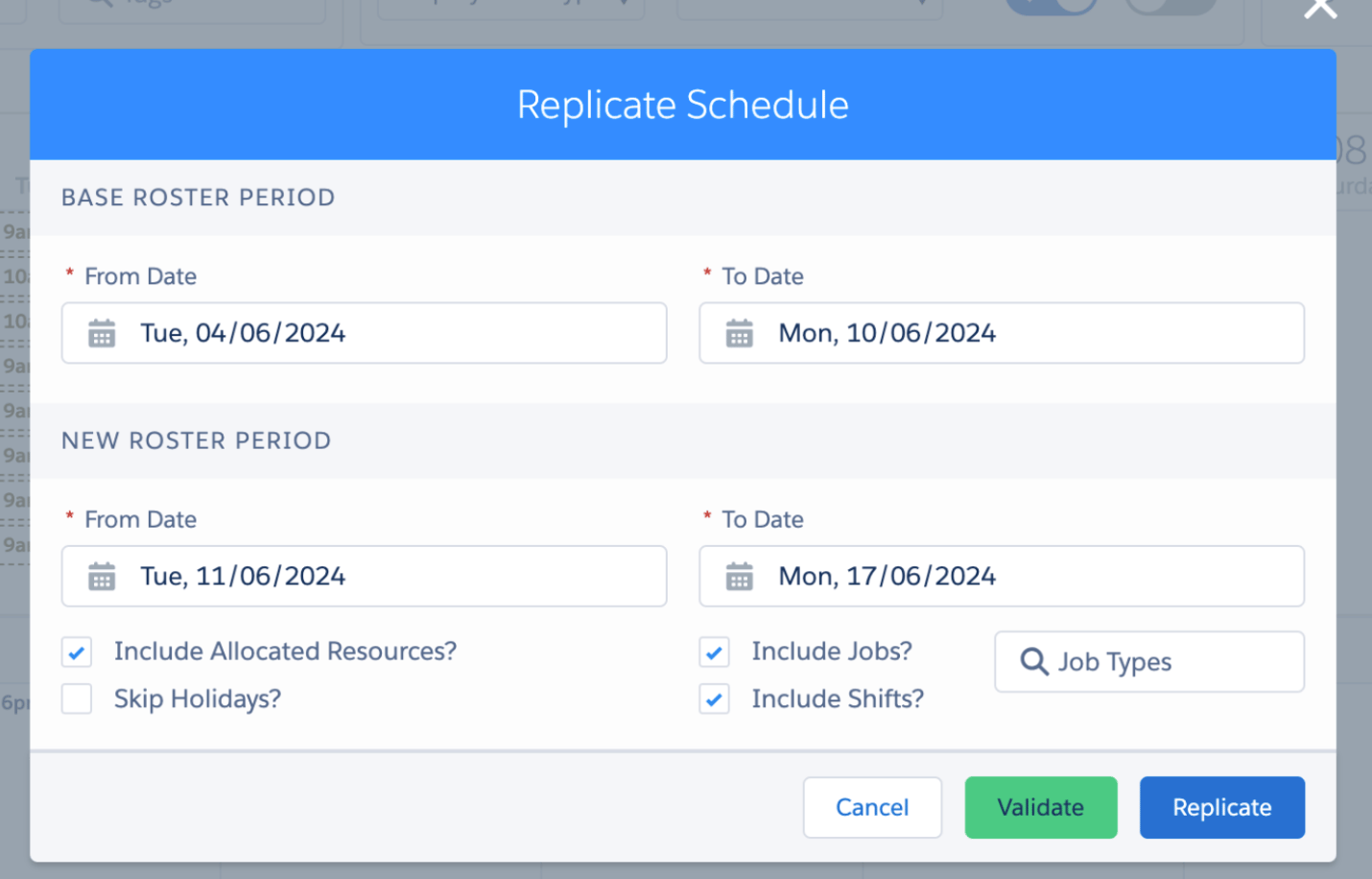
Instead of replicating the events from a region base template, schedulers can directly replicate those events that are on the current viewing roster.
The experience is very similar to replicating or validating events of a region base template. Select Replicate Schedule option as below.
Publishing a region roster
After the Jobs and Shifts are replicated into the new roster period, schedulers can now publish those events to the resources.
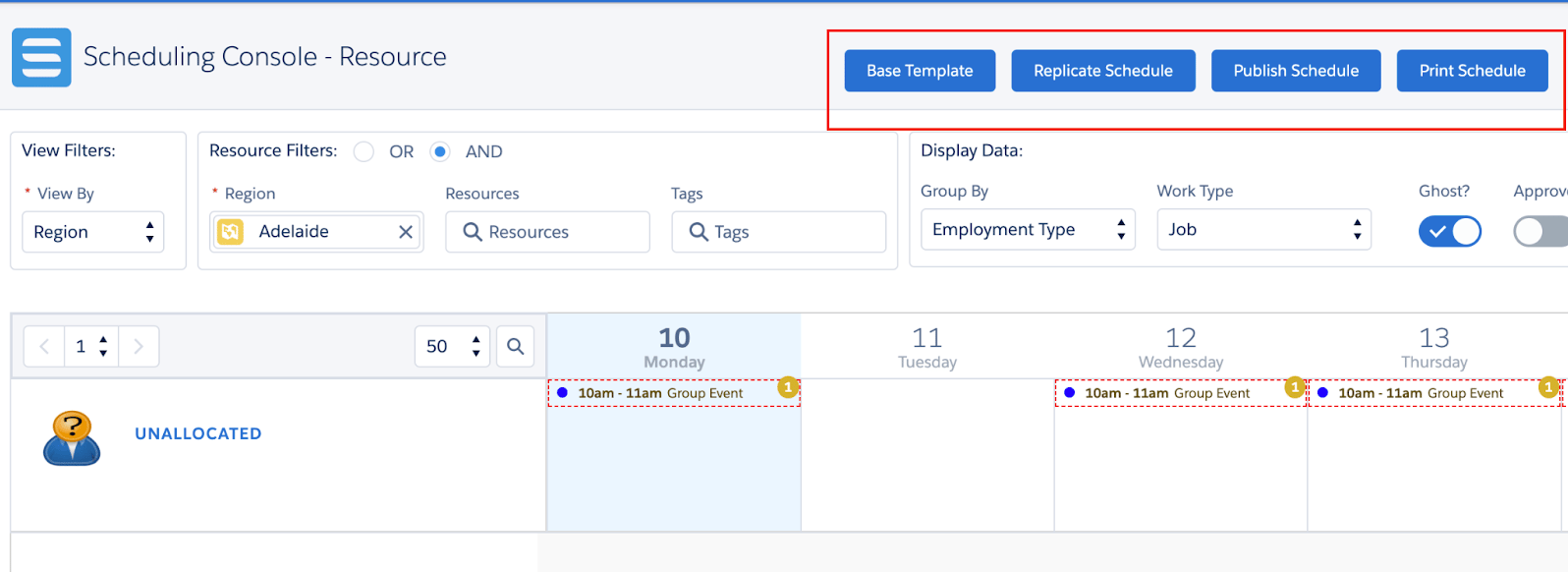
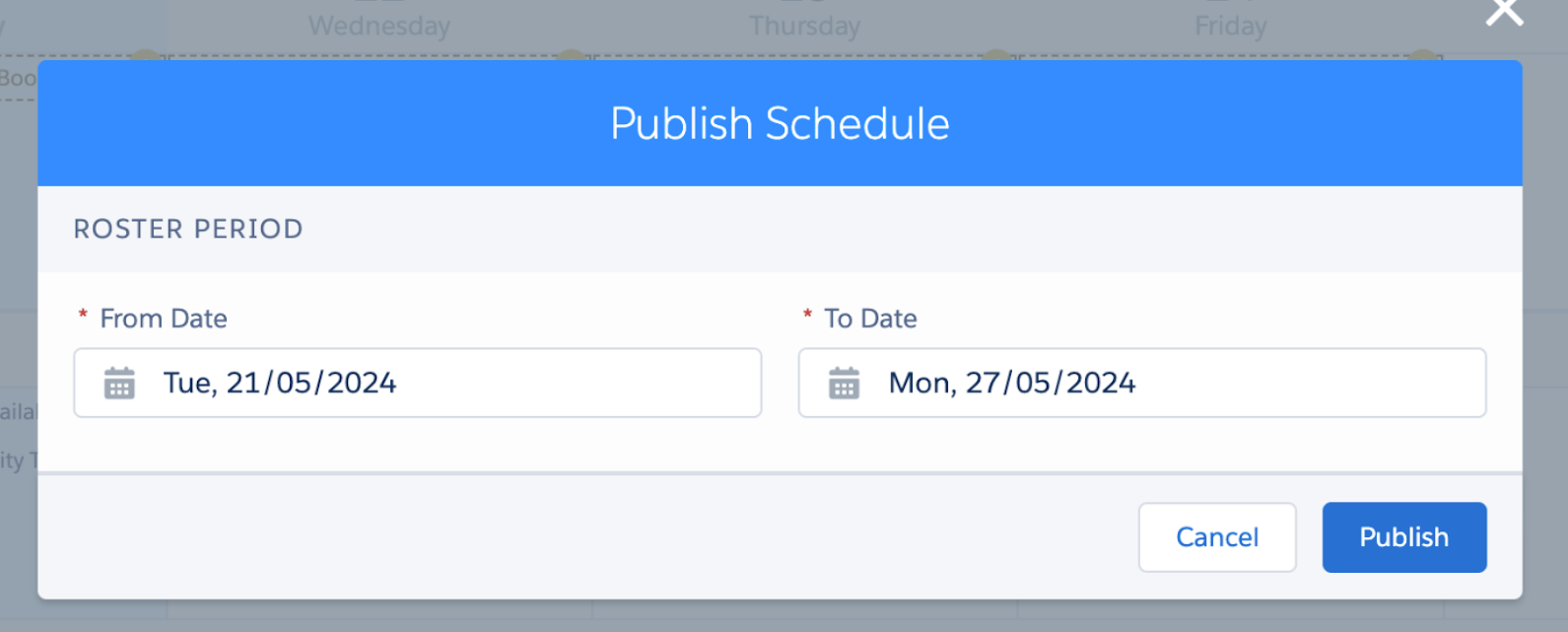
Publishing a roster results in:
- The work between and including the new roster period dates will be published to the allocated resources, specifically:
- The Jobs with Pending Dispatch status will be updated to Dispatched.
- The Shifts that are marked as “Is Draft” will have this indicator removed.
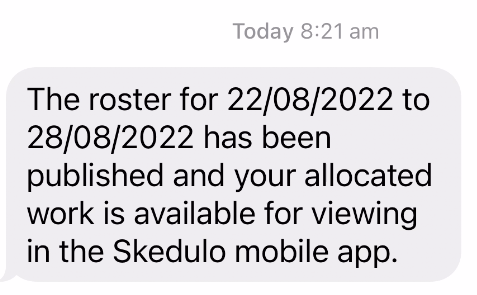
- A single notification will be sent to each resource with at least one allocated work item within and including the new roster period dates.
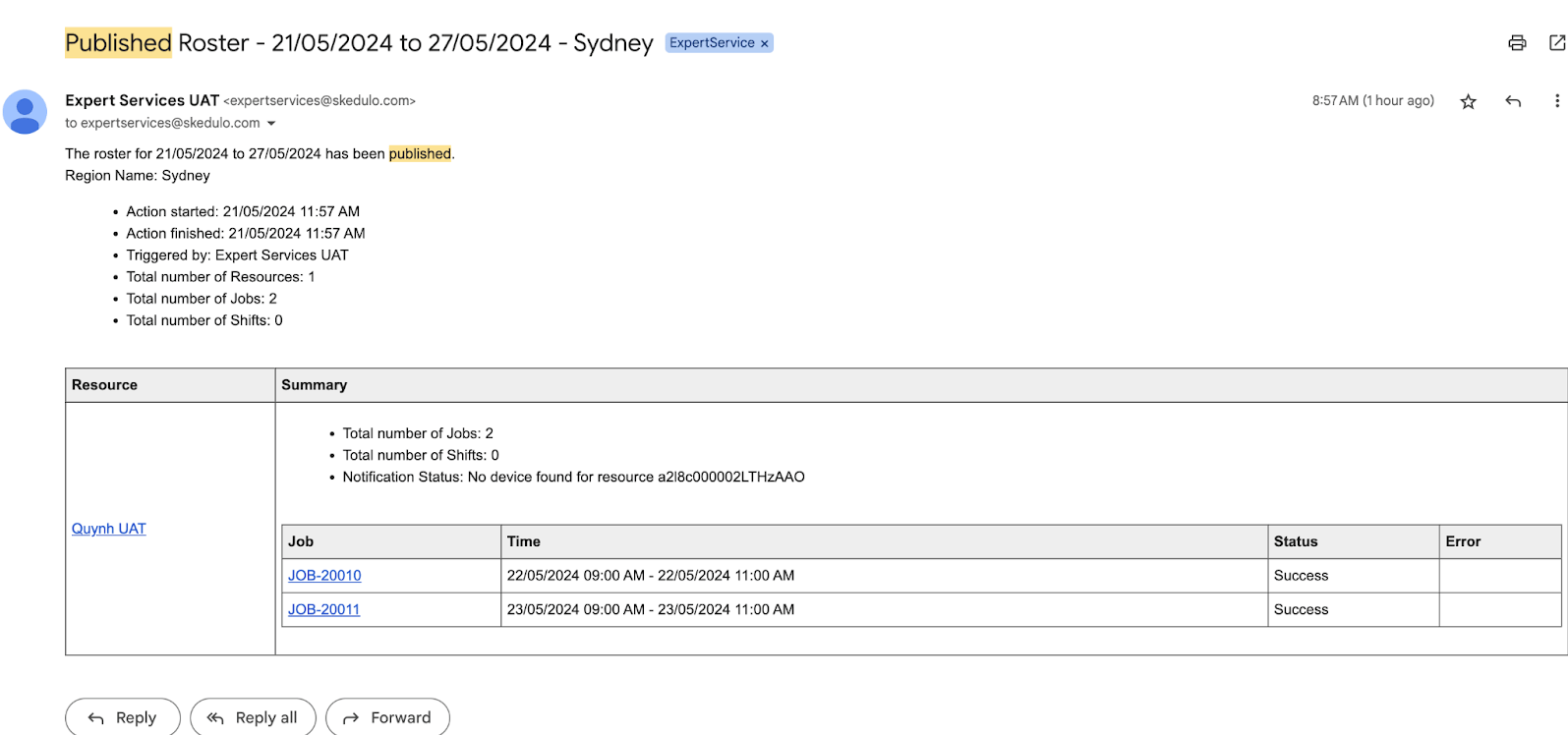
- An email notification with details of the publication will be sent to Salesforce users registered with the nominated public work group.
Printing a region roster
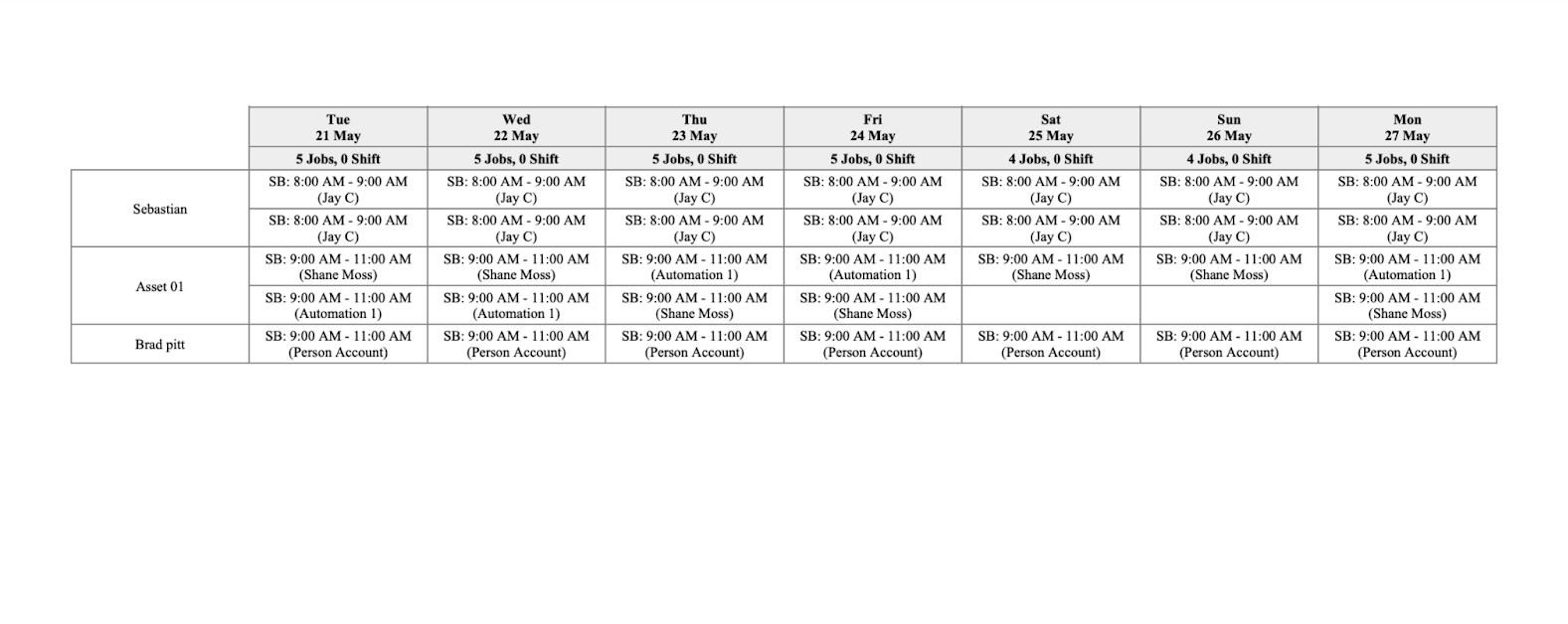
Schedulers can print a region weekly roster.
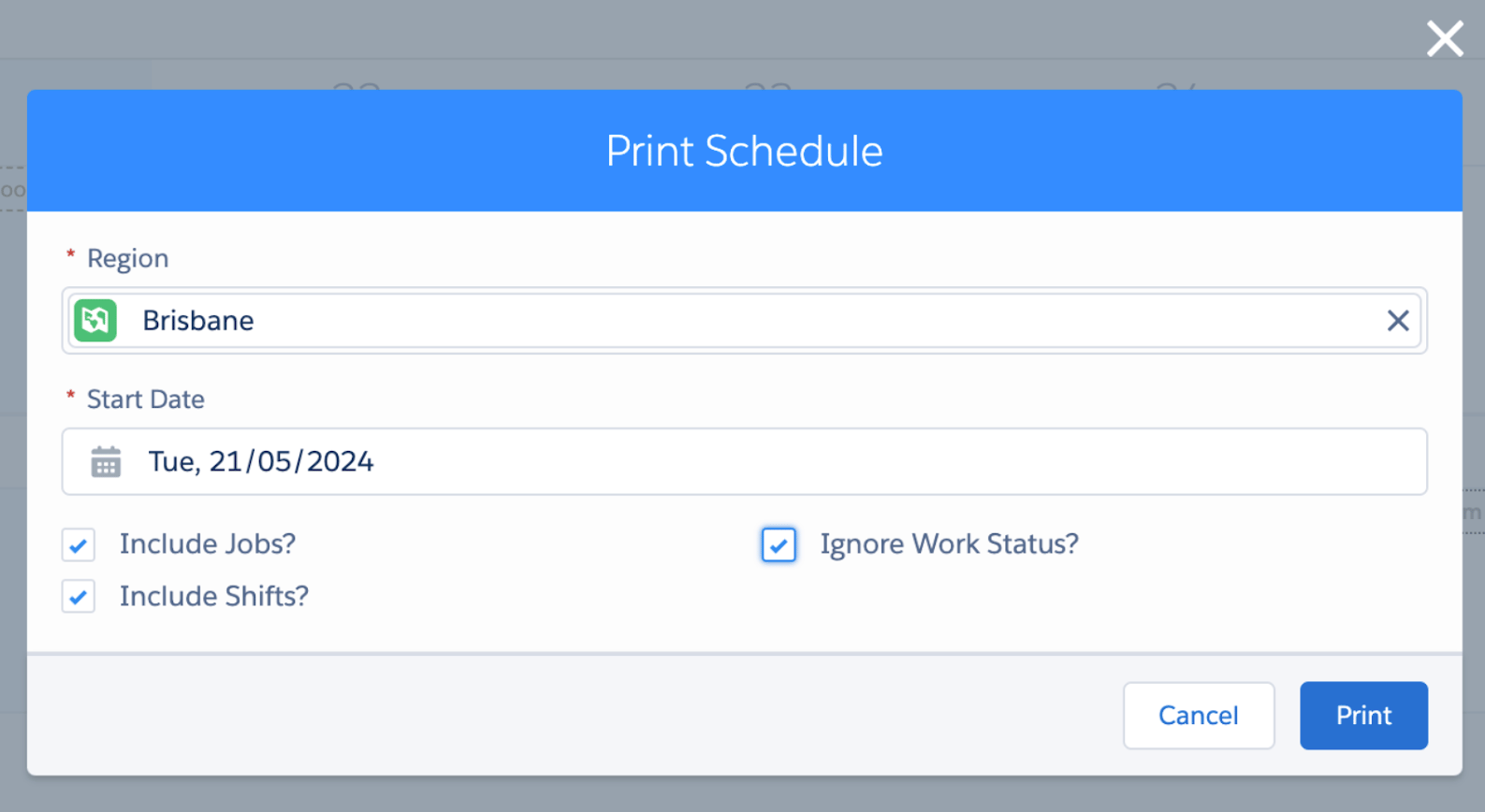
Jobs and Shifts that are associated with the region will be printed.
Feature flag
This set of region base templates and roster replication features is controlled under a setting:
- Go to Setup
- Find and open Custom Settings
- Manage records of Skedulo Healthcare Scheduling Settings
- Find and edit setting Region_BaseTemplate_and_Replication
- Update value to True (show the buttons), False (hide the buttons). False is the default value.
Resource Calendar – Populating Scheduled Dates and Times when Completing Jobs
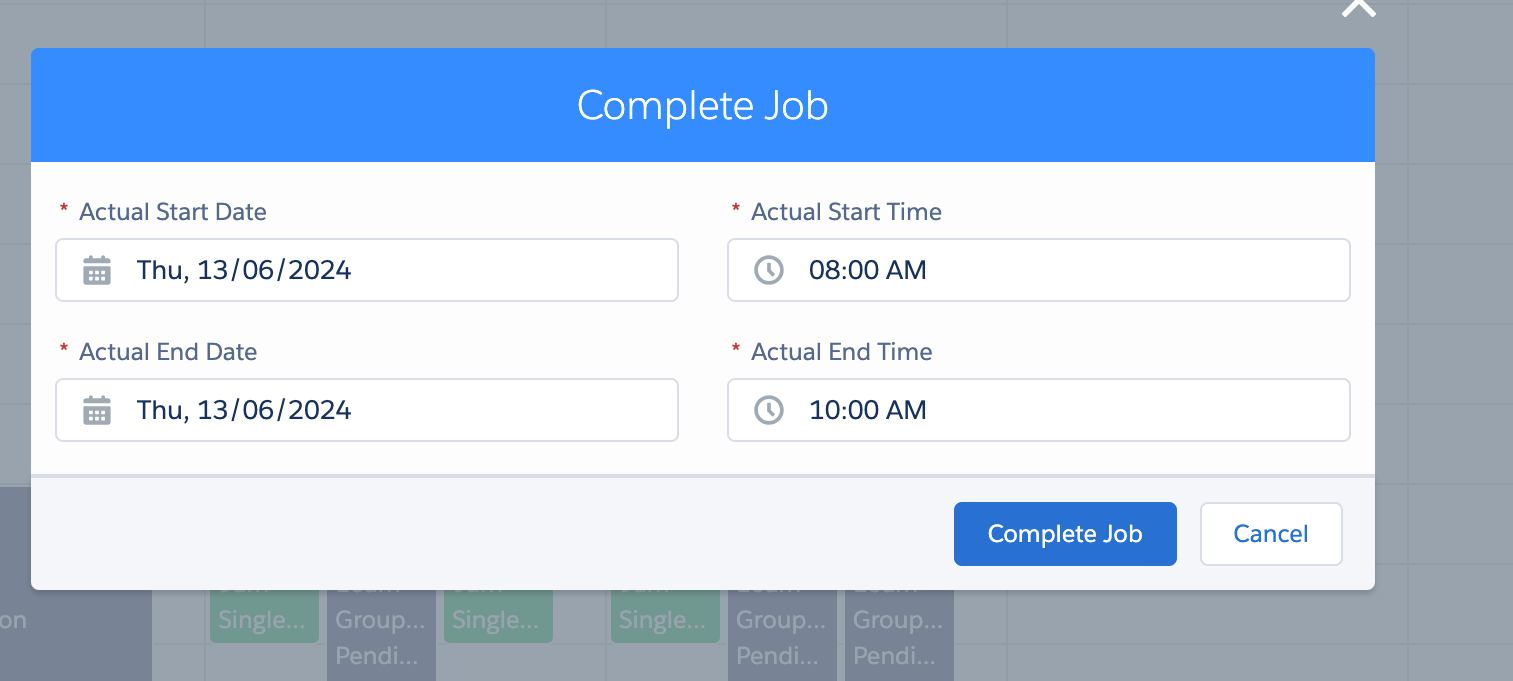
When completing a job from the Resource Calendar, the actual date and time fields are now pre-populated with scheduled dates and times.
Schedulers can still make changes to the values before confirming complete.
Issues Fixed
- The issue has been fixed whereby job cards in the Timesheet Console were being shrunk down even though there are no overlapping and back-to-back jobs.
- The issue has been fixed on the Scheduling Console whereby Resources were still displayed when filtering by an expired tag.
- The issue has been fixed on the Roster Management Console whereby cancelled Group Event jobs were not showing, although the filter selected cancelled jobs to display.
- The issue has been fixed whereby Apply to all function on jobs did not remove the duplicated JSI.
Important
Additional Install Component: If you are upgrading from version 1.139 or less this version of the AU Healthcare Package requires the installation of an additional component. Installation is required to enable certain core functionality
Refer to the AUHC Additional Install Component page for further details and steps to perform the installation.
Manual Installation Links
Sandbox: https://test.salesforce.com/packaging/installPackage.apexp?p0=04t8W000003FYBYQA4
Production: https://login.salesforce.com/packaging/installPackage.apexp?p0=04t8W000003FYBYQA4
Please note: You must be a Salesforce Administrator to install this package.