


⚠️ Important – When upgrading to this version, if you have skipped any previous releases, please use the installation links below to proceed as usual. However, we recommend reviewing the release notes for the skipped versions to familiarise yourself with new features, issue fixes, and to ensure compatibility and correct setting requirements.
Compatibility
Lumary Compatibility: This version of the AU Healthcare package is compatible with the following Lumary packages. These Lumary packages must be installed prior to updating the AU Healthcare package. Contact Lumary for the following package upgrades.
- Lumary: 20.3.9 or greater
- Enrite Services: 1.307 or greater
Skedulo Compatibility: This version of the AU Healthcare package is compatible with the following Skedulo packages. This version of the Skedulo package must be installed prior to updating the AU Healthcare package.
- Skedulo: 102.56 or greater
Disclaimer
All enhancements done on the Allocation screen for Jobs are for the default modal. If the modal has been enhanced to support Award Interpreters then these new features or enhancements will not be available by default and will require customisation.
🎉 What's New?
Centre Capital Cost Charge on Group Event Template
- "Centre Capital Cost Charge" field allows the service provider to include the cost of maintaining the centre or building within which support is provided while creating a job. This can be used in conjunction with a recent Lumary release.
- Below field has been added to Additional Fields custom setting:
- Name: Centre Capital Cost Charge
- Label: Centre Capital Cost Charge
- Field Type: Picklist
- Field API Name: skedhealthcare__Centre_Capital_Cost_Charge__c
- Category: GroupEvent
- Values: Allow, Prevent
- Default Value: None
- With the new field being added, it will appear in the Additional Fields section of the Group Event Template.
- Schedulers can select this field in the template area, which is then populated to the corresponding field when scheduling group event jobs.
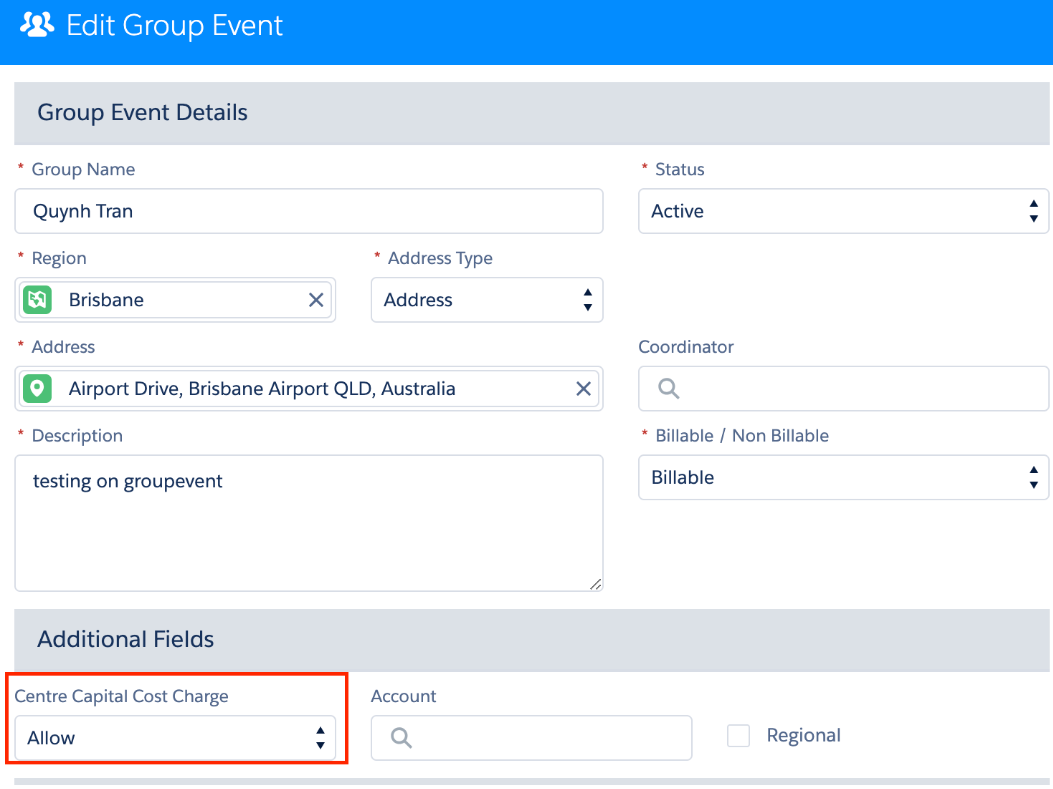
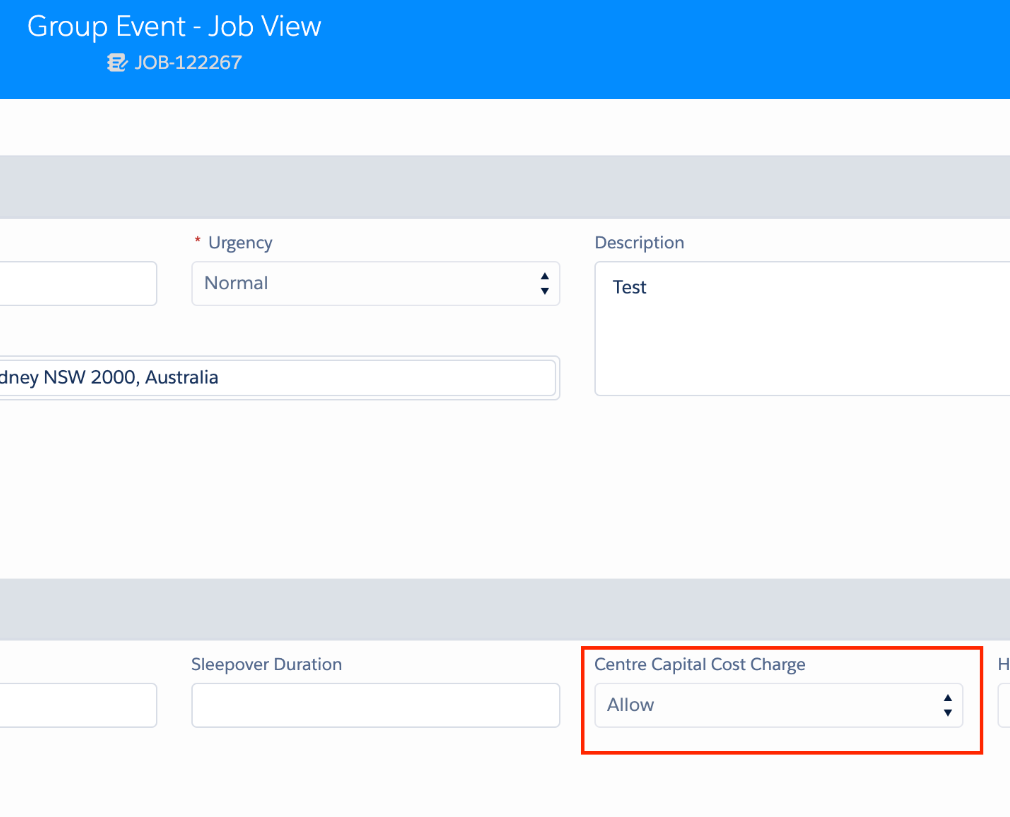
- Lumary will then pull the value from this field for their Service Delivered creation process.
- To set up:
- The new field on Group Event Template should be automatically added when installing the new version.
- To hide the field: go to Setup > Custom Settings > Skedulo Additional Fields > Deactivate Centre Capital Cost Charge field of the Group Event Jobs.
- To populate the value from Group Event Template to Group Event Jobs, go to Setup > Custom Settings > Skedulo Additional Fields > Edit Centre Capital Cost Charge field of the Group Event Jobs > Set default value equal to the new field.
Displaying cancelled jobs and filtering by cancellation reasons on Roster Management
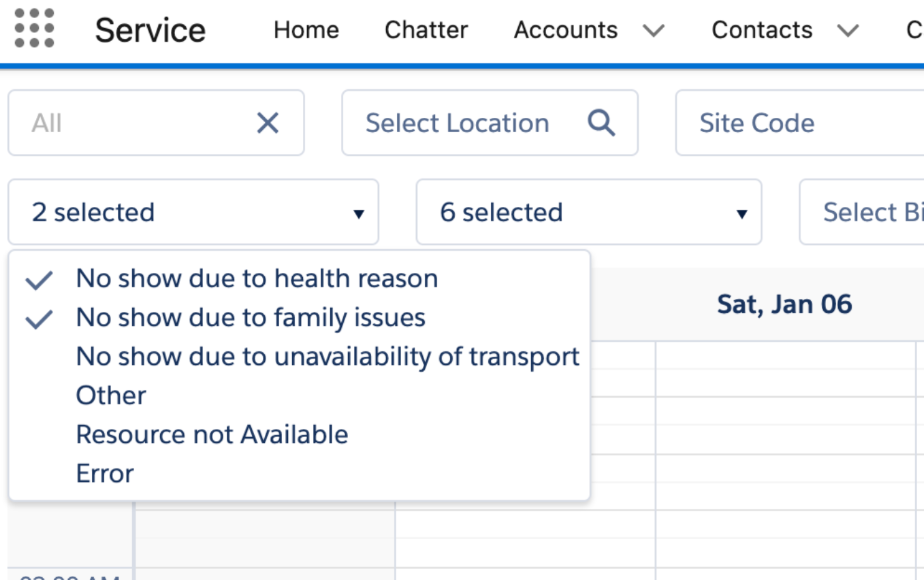
- Schedulers can now view all or specific cancelled jobs by cancellation reasons in the Roster Management Console.
- To set up:
- Go to Setup > Custom Settings > Skedulo Configs > Edit existing setting RM_Show_Cancelled_Jobs to "True"
- When the above setting is "True" and schedulers select "Cancelled" in the Job Status filter, the new filter Cancellation Reason is presented.
- The new filter supports all or multi selection.
New interface to manage Job Details and Job Allocation
- Schedulers have the option to manage Job Details (Job Details, Additional Fields, Service Details) and Job Allocation (Resourcing) in two separate tabs.
- The new interface aims to:
- Provide a new user experience where instead of scrolling vertically, extra "real estate" is created by using UI solutions such as tabs.
- Provide greater flexibility going forward for future product enhancements.
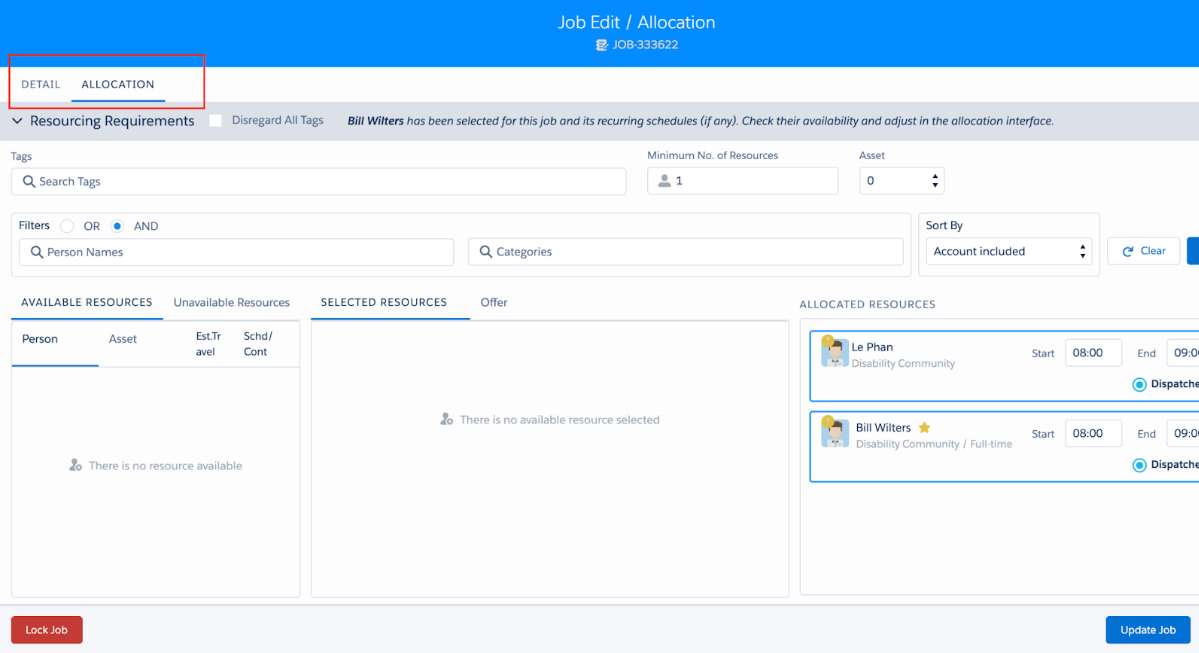
- To set up:
- Go to Setup > Custom Settings > Skedulo Configs > Display_Allocation_On_Tab
- Values:
- False: Job Details and Job Allocation on a single screen/modal (current state)
- True: Job Details and Job Allocation on separate screens/tabs (new interface)
- Default value is False, keeping the current state as is.
Managing availability in base template via Scheduling Console
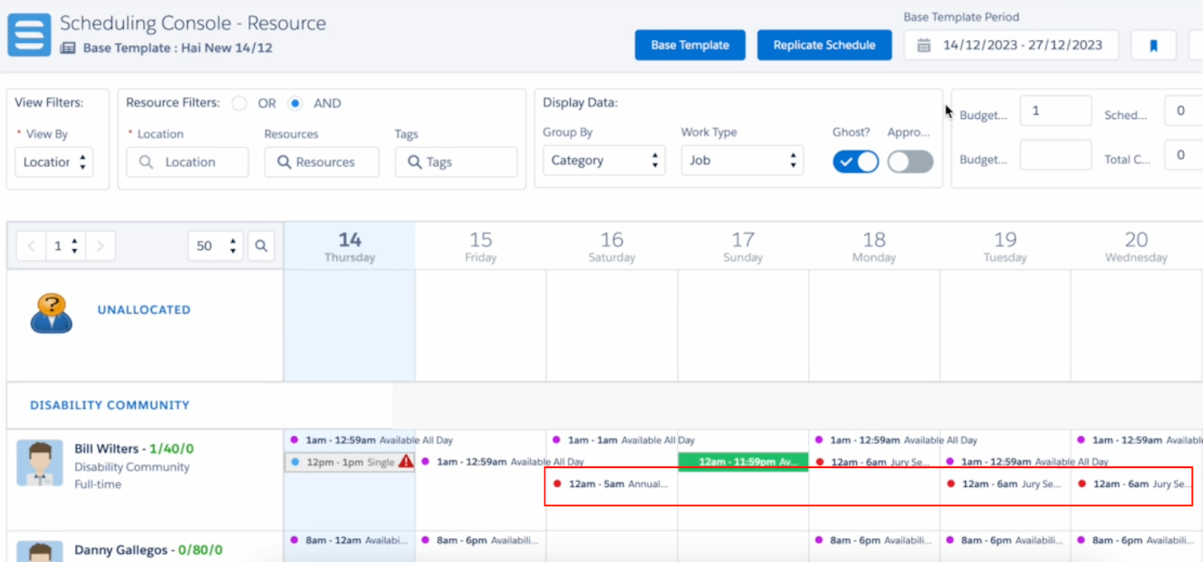
- Schedulers can now create new availability records or edit or delete existing availability records when managing a base template in the Scheduling Console.
- When creating a base template for a roster, any availability records existing on the roster will be brought into the base template together with jobs, shifts and activities. This will help schedulers create a roster in accordance to a resources availability.
- However when replicating a base template, the availability will not be replicated and should be managed in the Web App.
Important: This is considered a major change to the core capability of the product, hence it is highly recommended the related processes (Job Creation, Job Allocation, Job Edit) are thoroughly reviewed and tested firstly on UAT environments before deploying to Production to mitigate unexpected risks.
Overnight exception batch checks Availability Templates
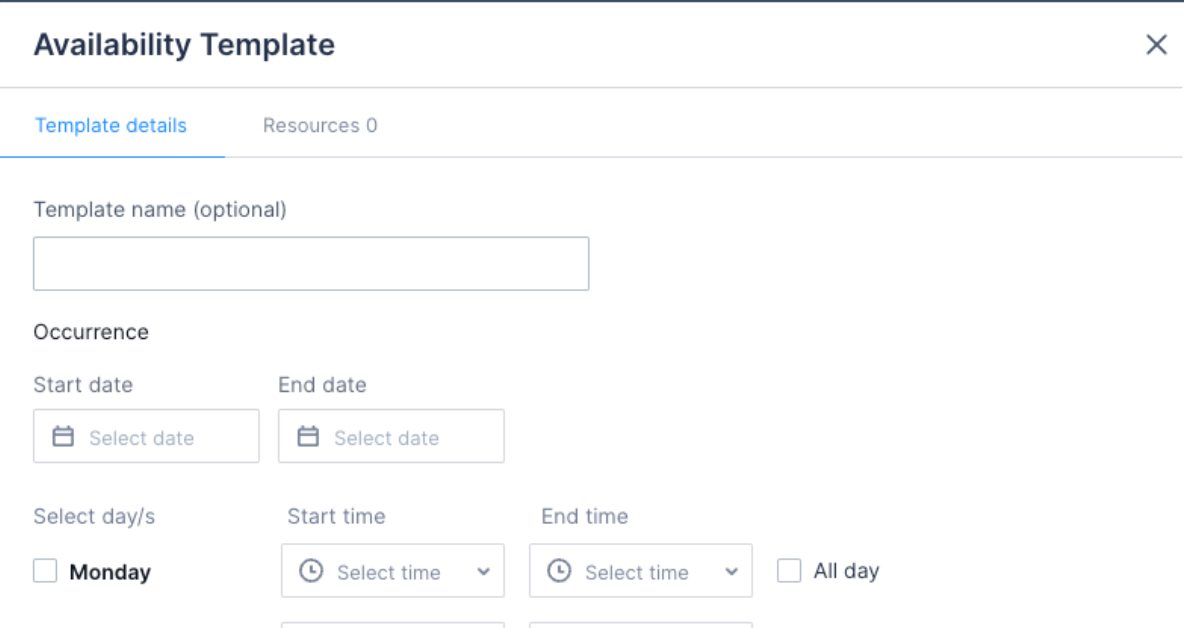
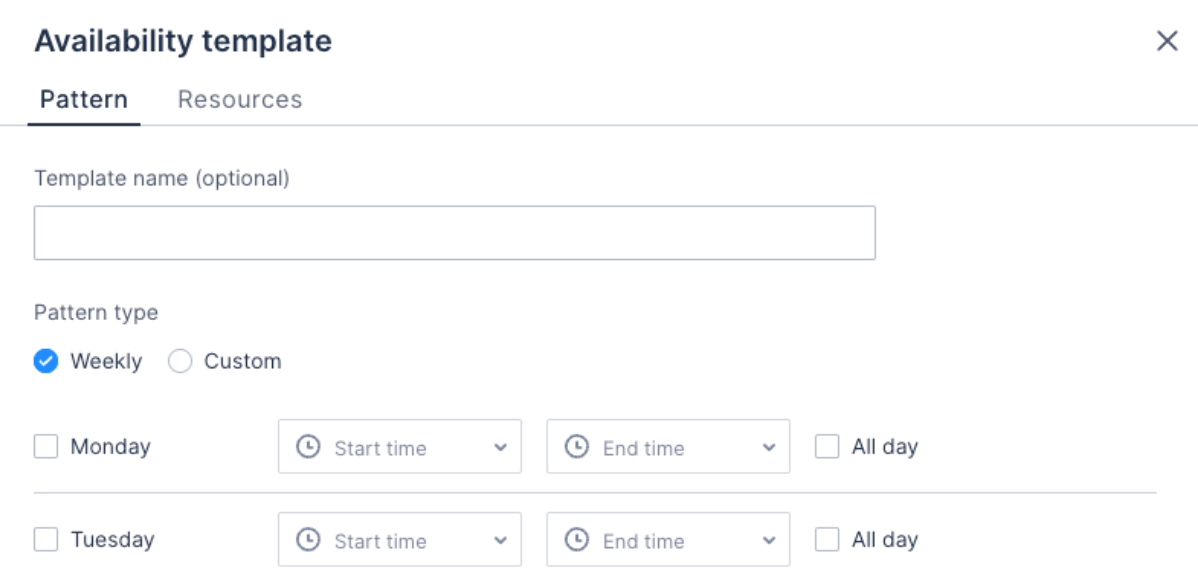
- Availability templates of resources are created in the Skedulo Web App. Depending on the setting for your organisation will determine if you are creating Availability Template Resources or Availability Pattern Resources.
- Availability Templates are the old way of creating availability and you will see this when adding /editing in the Web App.
- Availability Patterns are the new way of creating availability (offering more flexibility) and you will see this when adding /editing in the Web App.
- The Overnight exception batch now checks either the Availability Template Resources or Availability Pattern Resources when the batch is run.
- To set up:
- Go to Setup > Custom Settings > Skedulo Configs > Edit Enable_Template_Availability_Callout
- When set to True, the batch will check the old Availability Templates.
- When set to False, the batch will check the new Availability pattern templates.
- Defaulted to True.
- Depending on where your availability templates are created and stored, switch the setting to the appropriate value.
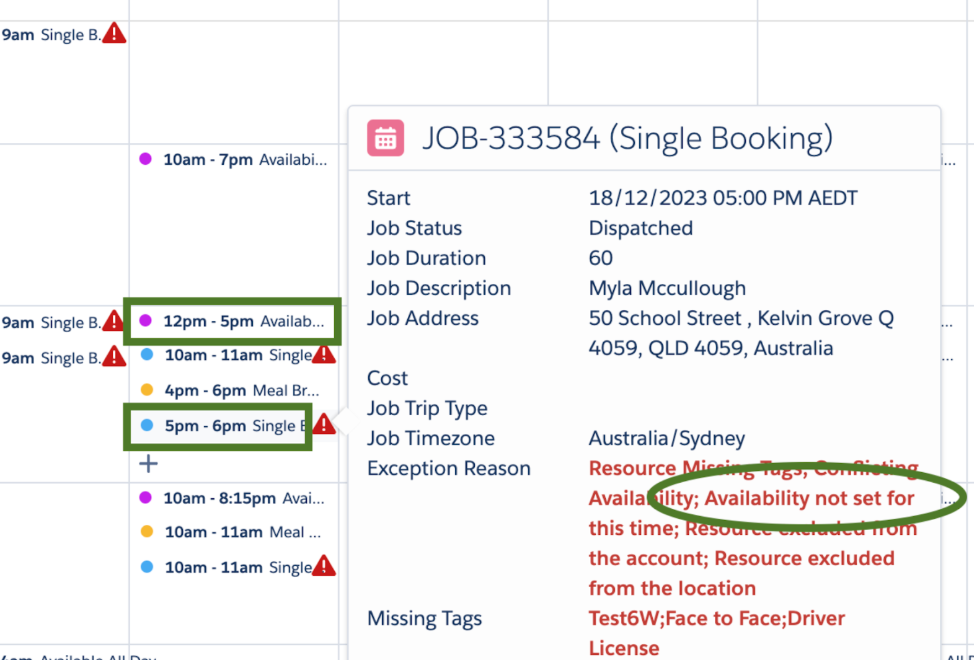
- Exception "Availability not set for this time" will be displayed when job allocation is not falling into any templates setup for resources.
🛠️ Issues Fixed
- The Event Delivery Ratio fields on Group Event Template and Job Details have been deprecated as they do not drive anything , only the field on Job Service Items is maintained going forward.
- The issue has been fixed whereby Event Delivery Ratio on Job Service Items was not auto populated based on the Service Agreement Items.
- The issue has been fixed whereby jobs should have been auto deallocated and cancelled when a client was put on hold (based on the trigger controlled by setting Skedulo_Client_On_Hold_Capability). The root cause was because the existing trigger did not support clients with Personal Account type.
- The issue has been fixed whereby picklists were showing API Names instead of Values.
- The issue has been fixed whereby drag and drop functionality on the Scheduling Console was prevented when schedulers were trying to return the job to the unallocated row and the job was requiring more than one job allocation. The root cause was because in order to return a job to the unallocated row, the status must be in Dispatched or Pending Dispatched or Ready. Status Pending Allocation has been added.
- The issue has been fixed whereby jobs could not be created when some values of Delivery Method picklist were deactivated in the client’s org.
Important
Additional Install Component: If you are upgrading from version 1.139 or less this version of the AU Healthcare package requires the installation of an additional component. Installation is required to enable certain core functionality
Refer to the AUHC Additional Install Component page for further details and steps to perform the installation.
🔗 Manual Installation Links
⚠️ Salesforce administrators only
- Sandbox:
https://test.salesforce.com/packaging/installPackage.apexp?p0=04t8W000002yL9Q - Production:
https://login.salesforce.com/packaging/installPackage.apexp?p0=04t8W000002yL9Q
Need Help? See View and upgrade Skedulo Managed Packages on Skedulo Docs.